Animation Shop (Program)
26 replies · 7091 views

so yeah...downloaded it and I'm banging my head against the wall...kind of takes me back to the time I downloaded photo shop and didn't know how to use it.  ok... how do I use it?

 i use it ... umm what do you need help on?
how do I upload a video on it so I can cut frames and make animated avatar? or..it's like imageready- making thousand of caps and puting them on on another couse I downloaded animation shop so I won't have to do this whole prosses 
well what i do is. open a video on Windows Movie Maker. then i edit the video to get the clip i want
as an avatar. then i save it. once it's finished saving, i convert it to .AVI format coz Animation Shop only
allows you to open .AVI format videos
haha hope that helps ... if not i might as well make caps of what to do
you know what? this whole thing sucks couse my windows copy is not ginune as a result of that windows movie maker doesn't work...it's an useless case 

well what i do is. open a video on Windows Movie Maker. then i edit the video to get the clip i wantas an avatar. then i save it. once it's finished saving, i convert it to .AVI format coz Animation Shop only
allows you to open .AVI format videos
haha hope that helps ... if not i might as well make caps of what to do
sorry but how do you convert it in avi format? beacuse I have the same problem Sahara 

sorry but how do you convert it in avi format? beacuse I have the same problem Sahara
you should use some video converter, personally I use SUPER vid converter
you should use some video converter, personally I use SUPER vid converter
yeah i use SUPER too but i used to use Blaze Media Pro but it's not working for some reason <_<
so what now? I need to download thousand of programes just to make one work?
ahhh...I want to make animated avatars 
Me too But I don't thing I can download so many programs 

I can never get SUPER to work for me
Me too
The only program I work with is Adobe Imageready, which comes together with adobe photoshop, and I also use Paint
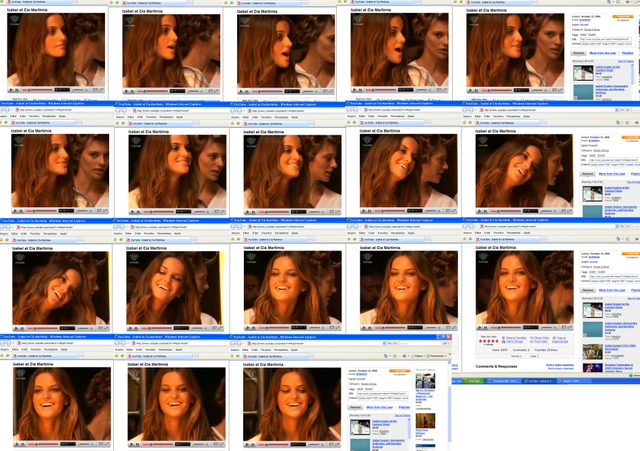
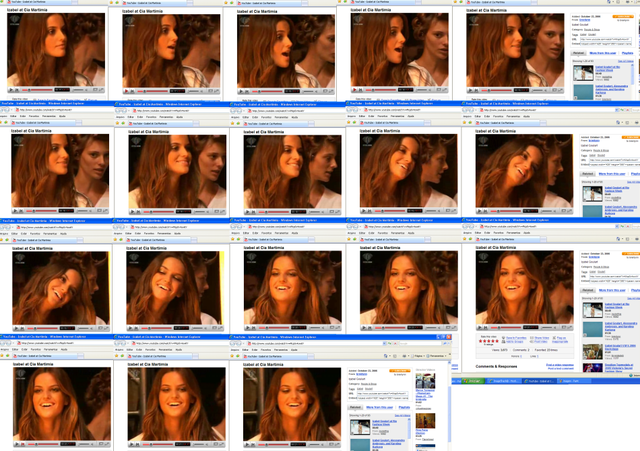
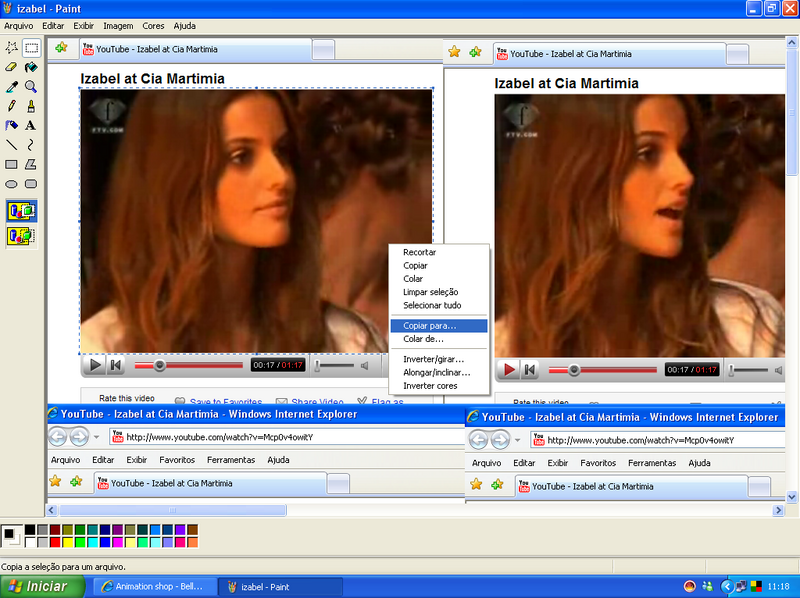
I click Pause on the video from youtube really fast and cap the frame pressing Print Scrn (right next to F12) and then I put each frame on Paint, that's what I get:
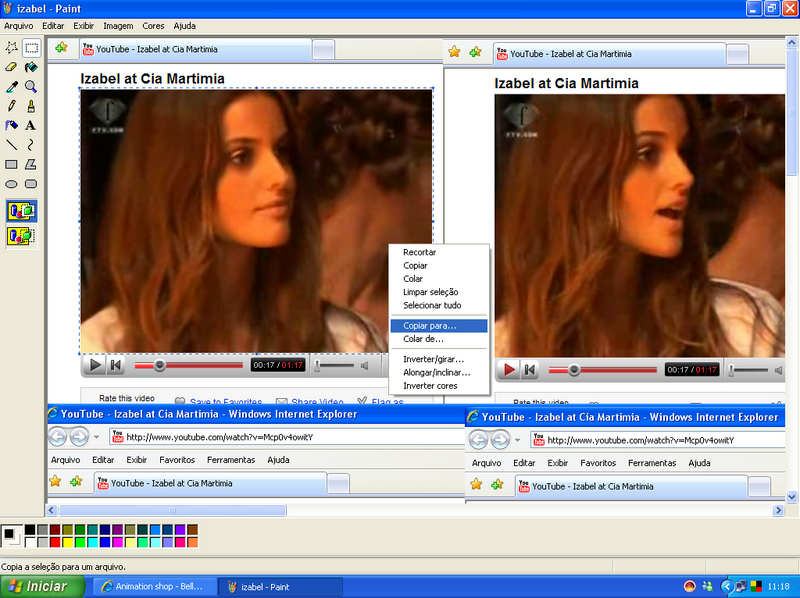
Then I cut one by one and save then, (notice mine is in portuguese) but you should click on the same place
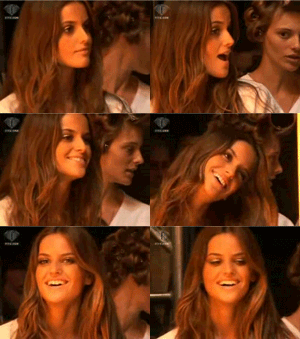
Then when I have all of the frames saved I import them as frames on image ready and here's my animation:
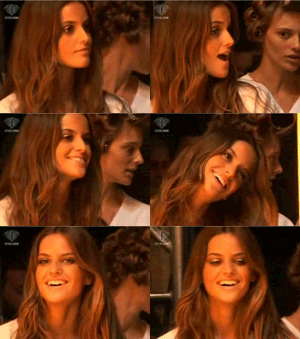
(Julia's avatar)
I click Pause on the video from youtube really fast and cap the frame pressing Print Scrn (right next to F12) and then I put each frame on Paint, that's what I get:
Then I cut one by one and save then, (notice mine is in portuguese) but you should click on the same place
Then when I have all of the frames saved I import them as frames on image ready and here's my animation:
(Julia's avatar)
Oh...I understand and I can make this  And you don't need to download videos right?
Right 
So, I made a tutorial for this and hopefully it'll make sense
I went and skipped the whole editing in Windows Movie Maker then converting it 
1. Open a file and you'll get something like this. I'll use Adri for this one

2. Select the CROP tool.

3. Now, highlight the part you want to be cropped. Double click it.

After you double click it, you get this.

4. Now, go up to ANIMATION >> RESIZE ANIMATION

5. Resize the animation to 150px (width for BZ)

and you'll end up with this.

6. To add borders on your animation. Open a new animation. Click on the blank paper icon on top.

7. When the CREATE NEW ANIMATION windows pops up. Enter the same width and height as the first animation. Look on the
bottom left to see what the dimensions are (150 x 108) Make sure it's TRANSPARENT.

and you'll end up with this window.

8. Zoom in by scrolling up (scrolling button on your mouse). And you'll get this.

9. Now select the LINE tool.

10. Now, type in how many pixels you want your border to be. For this, I'm going to use a 3px border.

11. Now click on the top left or where ever you want to start and drag to the other side and you end up with this.

Now repeat that for the other sides and you get this.

12. Ok, now zoom out to it's original size. Then RIGHT CLICK >> COPY.

13. Then paste it. There's two ways, you can RIGHT CLICK >> PASTE >> AFTER CURRENT FRAME or SHIFT + CTRL + L
it's easier if you do the second way.

So, paste it as many frames as the first animation (Adri's is 109 frames) and you should get this.

14. Now, select all the frames (CTRL + A). Click and drag to the first animation.

and you should get this. Now your animation has borders on it

15. To put a tag on it, repeat steps 6 & 7. Then click on the TEXT tool.

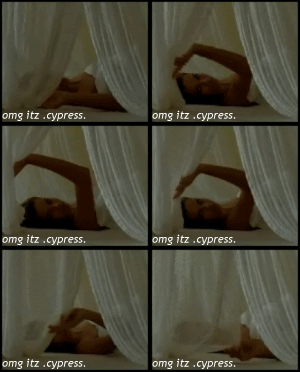
16. The ADD TEXT should come up. Now type in your tag (mine's omg itz .cypress. ) Then click OK.

Copy and Paste again and you should end up with this. Now, select all frames (CTRL + A)

17. Click and drag it on any spot you want. I decided to put it on the bottom left. Then you'll get this.

18. Save the animation as .GIF file then you're finished
Here's the final product
Very nice lesson  I'm sure I would understand this if I would use Animation Shop
thanks SO much!! i can do that now !!!
i have a question. how do you save your animation without having the optimizing effect? cause then it makes my animation look really crappy
i don't think you can i tried adjusting the settings a long time ago and tried it but it made it worse <_<
question, what are the original dimensions of your avatar, Nicole?