Elizabeth Turner
2723 replies · 3283592 views

Did anyone by chance record her live stream in the pool today? Was working when it started and missed it all. /sigh
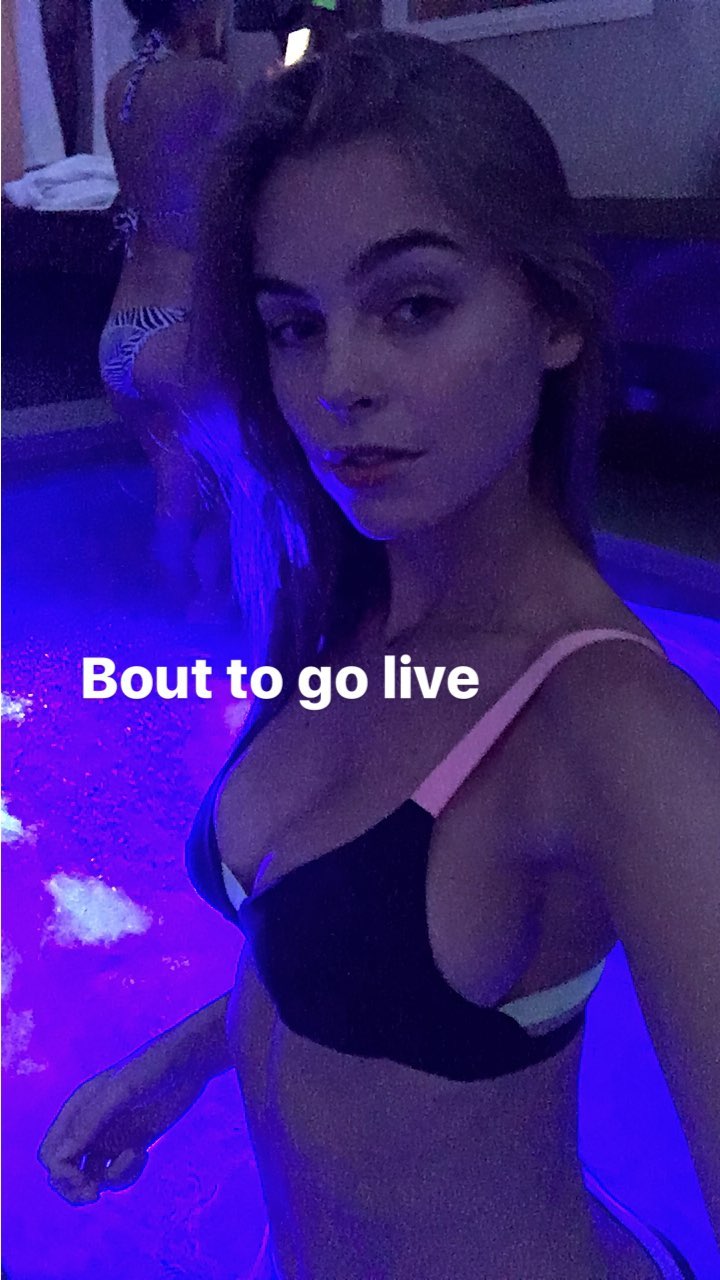
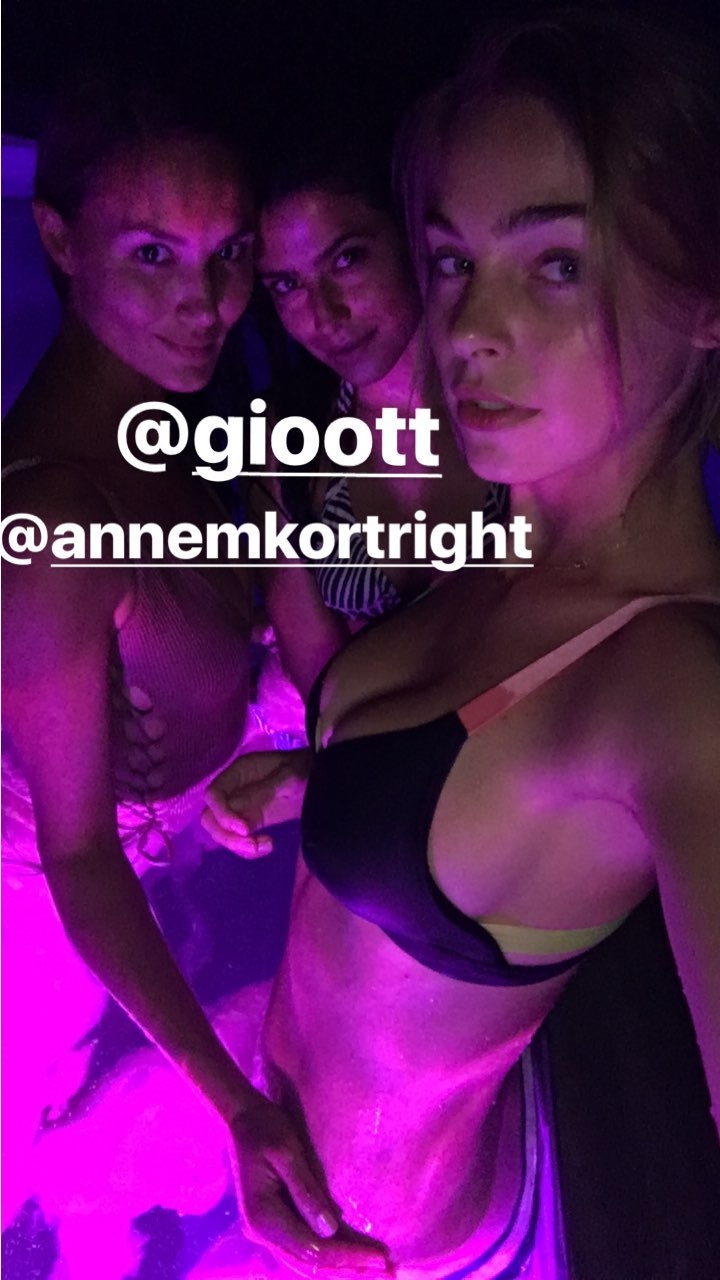
Some grabs from today



4 minutes ago, LizTurnerFan said:Did anyone by chance record her live stream in the pool today? Was working when it started and missed it all. /sigh
I was sleeping, different timezone you know, otherwise I would have definitively saved it... 
12 minutes ago, Charlie's Alter Ego said:
I was sleeping, different timezone you know, otherwise I would have definitively saved it...
Yea true dat. You would think out of her 636,000 or so followers someone would have saved it hopefully, lol. She needs to start using the share option thing at the end of the streams to keep them up for 24 hours.
On 03/08/2017 at 1:09 PM, LizTurnerFan said:
Yea true dat. You would think out of her 636,000 or so followers someone would have saved it hopefully, lol. She needs to start using the share option thing at the end of the streams to keep them up for 24 hours.
Eventually, I will make a tutorial on how to save/record Instagram Live Stories but I am really busy right now.
(here are the things I use. I use all of them)
Recording
Spoiler
Recording is possible on Android(Rooted, SCR Screen Recorder) or iOS(lightning cable only)+MacOS/WIN(with Quicktime)
- you have to watch it;
- volume must be up;
- you most likely have to edit it(just change frame rates from variable to constant, not hard to do);
- limited space on phone(Android);
- rarely able to capture starting at 1st second(<100%);
- every notification popping up, will also be recorded;
- your screen resolution;
- Android must be rooted
+ Cross-Platform;
+ easy on iOS with Quicktime
+ you can record where ever you are(depending on your signal);
Preview
Spoiler
Capturing & Downloading
Spoiler
Capturing streaming data can be done with MacOS, WIN and Linux using Terminal/CommandLineTools
- complicated to set up;
- mac/pc and terminal ideally must already be running;
- you most likely have to edit it(just change frame rates from variable to constant, not hard to do);
- rarely able to capture starting at 1st second(<100%);
+ now supporting saved replays too (100%)
+ Cross-Platform;
+ actual streaming resolution;
+ most likely more disk space than on your mobile device;
+ stable internet connection;
Preview
Spoiler
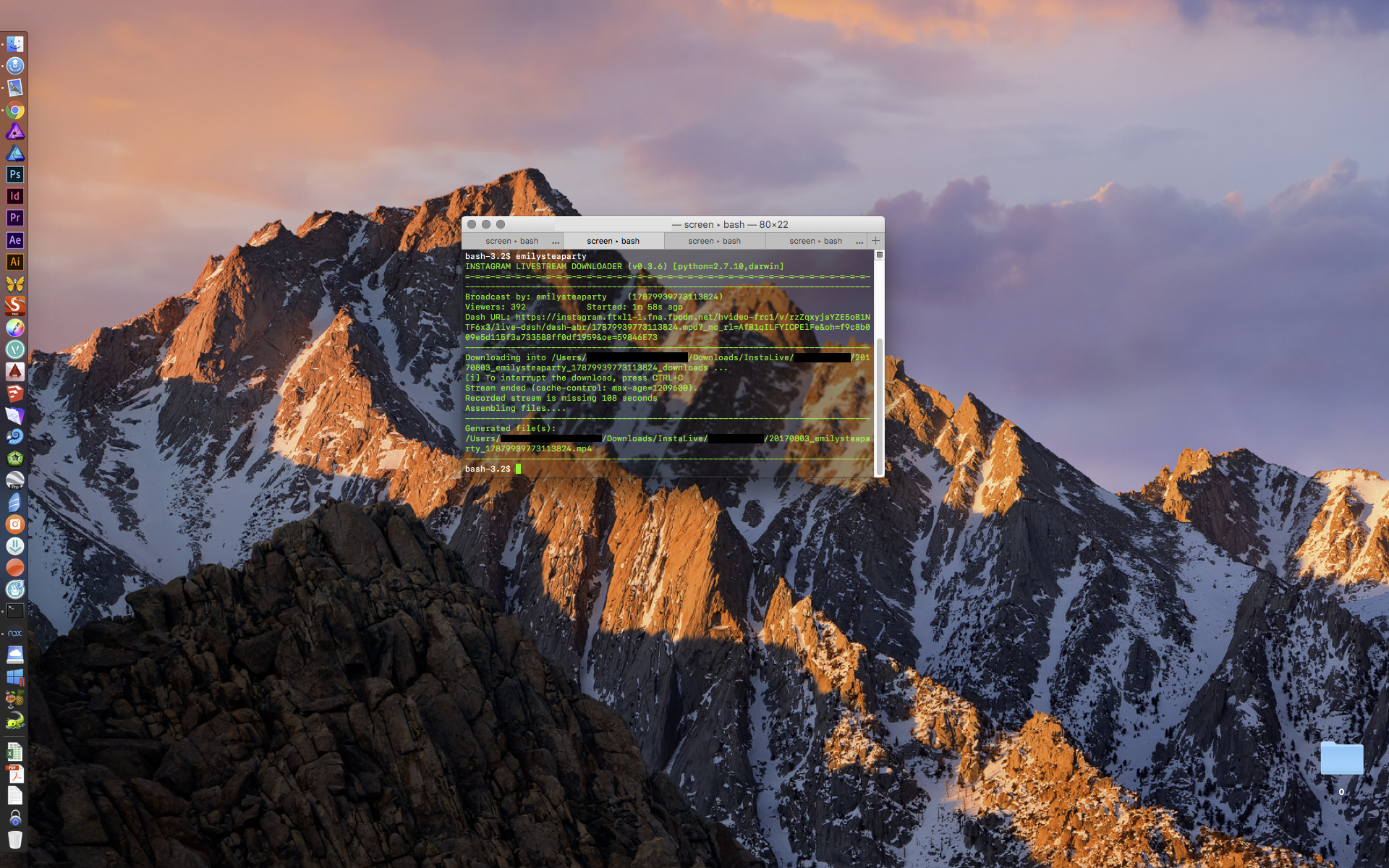
Downloading/Tutorial included
Spoiler
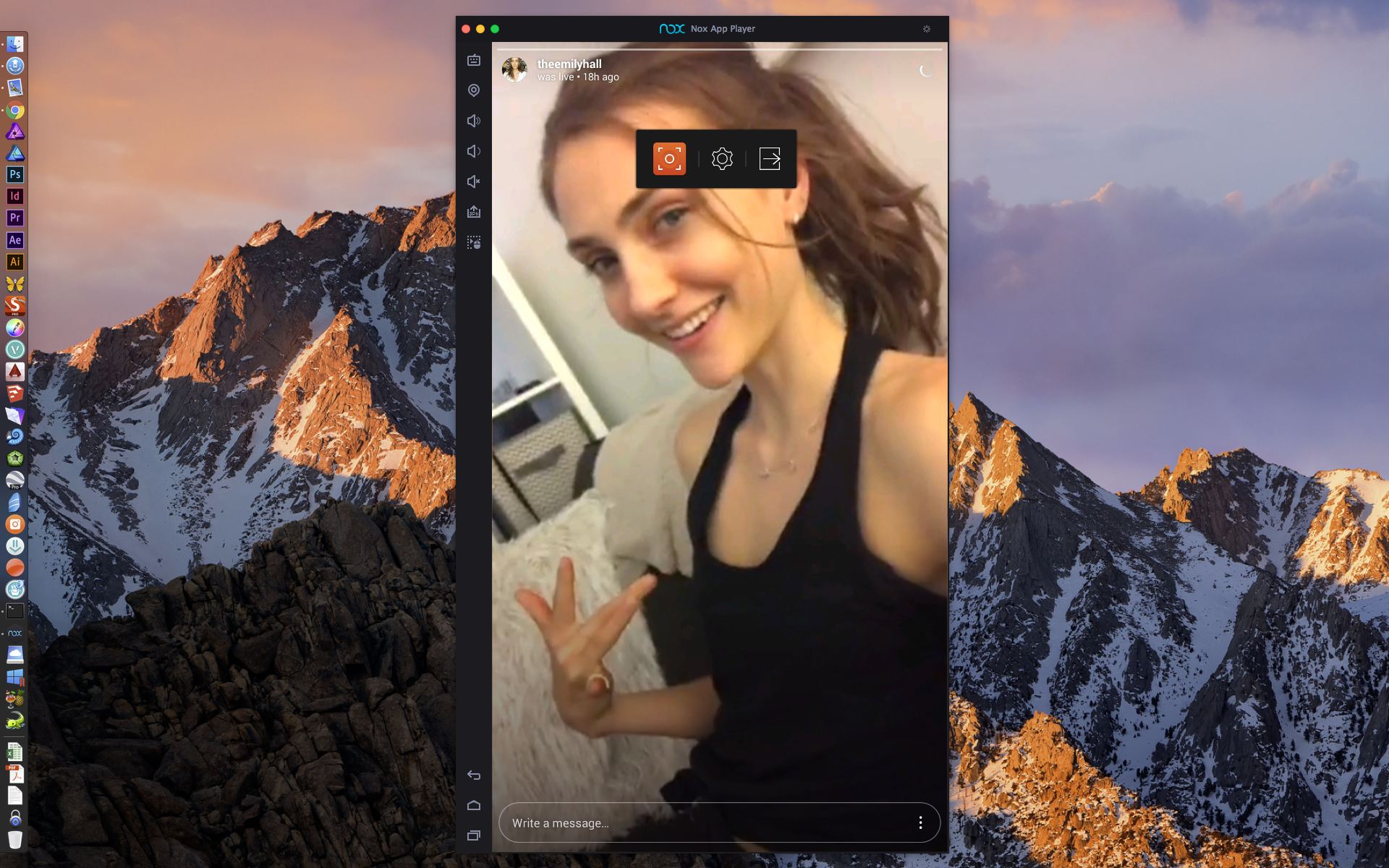
Downloading saved Instagram Live Stories on Android(Rooted, Xposed Framework, XInsta), MacOS/WIN(Nox Player, Xposed Framework, XInsta)
- slightly lower resolution than the actual stream;
- complicated to set up on Android;
+ easy to set up on MacOS/WIN
+ Cross-Platform;
+ 100% of the stream;
+ 24 hours available;
+ editing optional(not really needed);
Preview
Spoiler
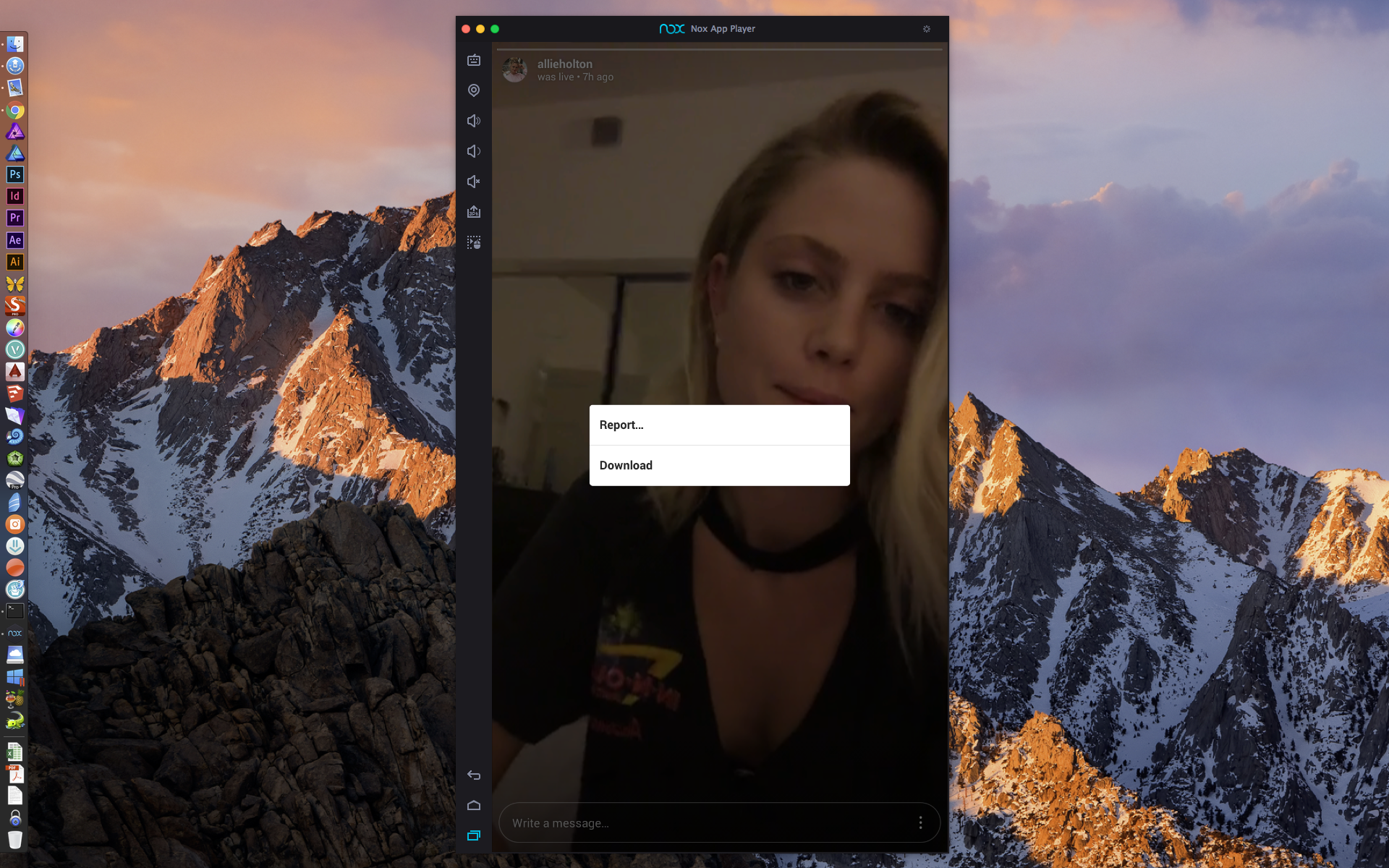
Tutorial
Spoiler
MacOS/WIN:
01. link: download Nox Player
02. with Nox installed go to Nox settings and turn on root
Spoiler
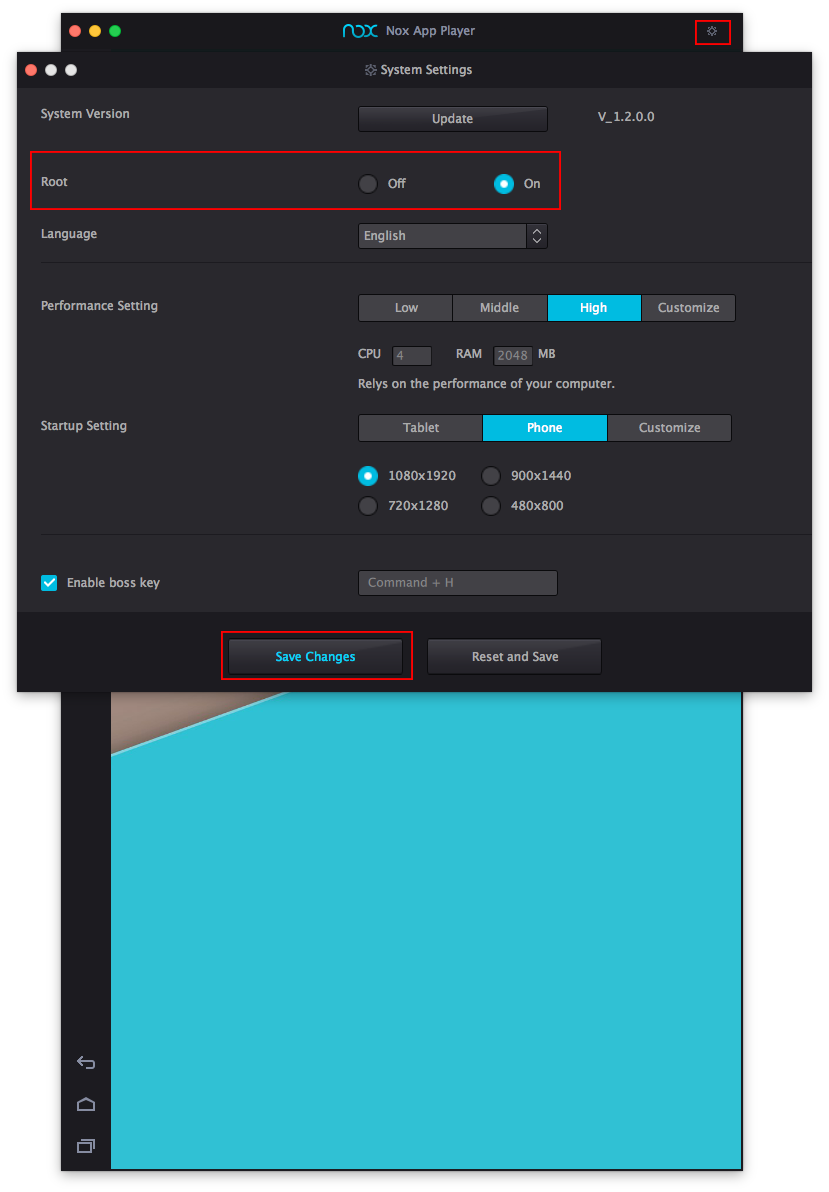
03. open Android setting/security and tick "Unknown sources"
04. open a browser in Nox
05. navigate to: http://repo.xposed.info/module/de.robv.android.xposed.installer
06. download: de.robv.android.xposed.installer_v33_36570c.apk to your phone
07. install the apk you just downloaded
08. now open the installed app Xposed
Spoiler
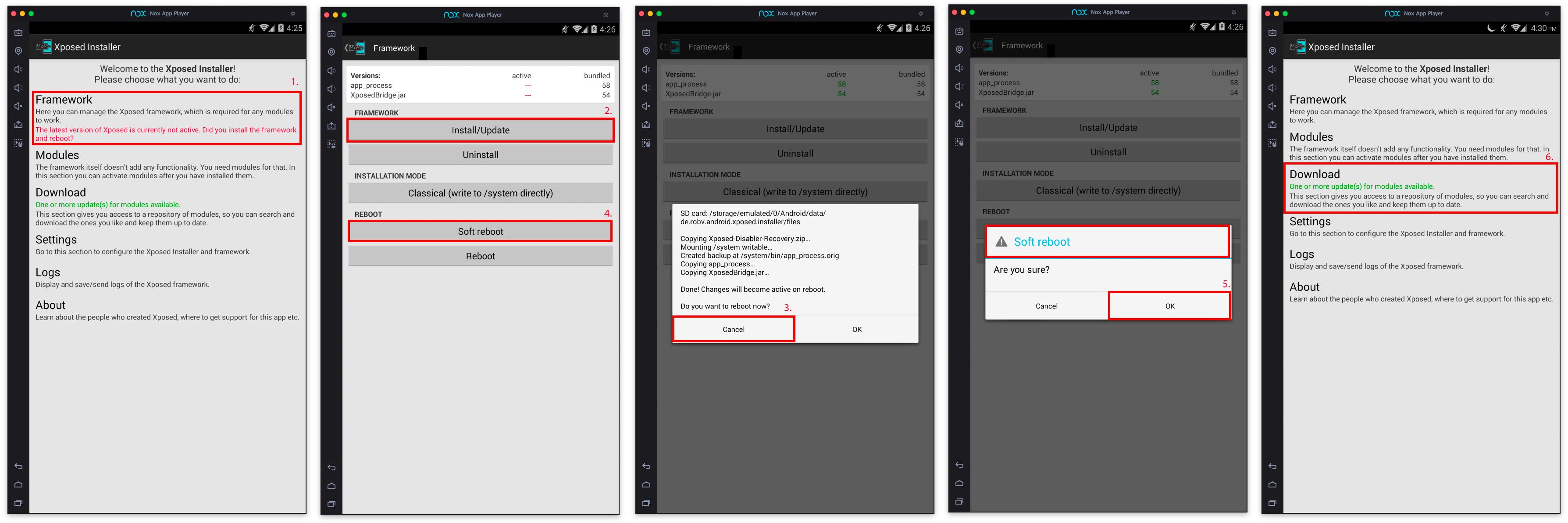
09. click on Framework -> Install/Update -> cancel restart prompt
10. click soft reboot -> OK
11. after reboot, open Xposed again and click on Download
Spoiler
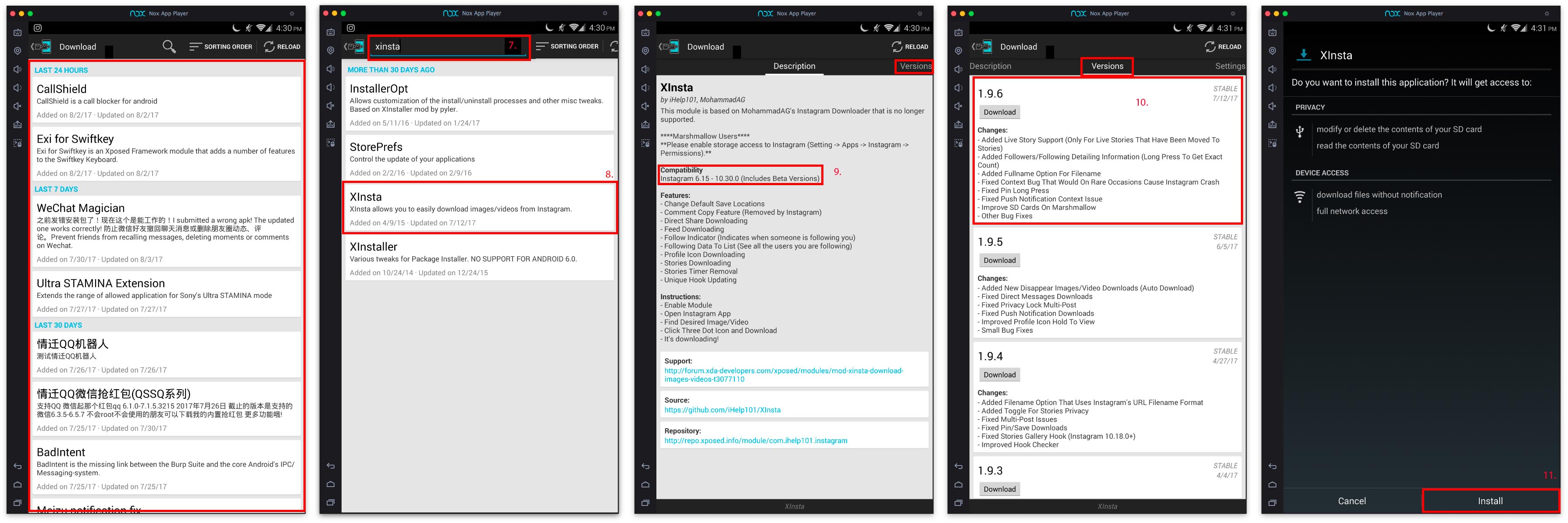
12. type "xinsta" into search box
13. click on XInsta
14. check compatibility of your Instagram version the latest IG v10.30-10.32 are working on XInsta 1.9.6
15 click on Install
16. after installation open XInsta
Spoiler
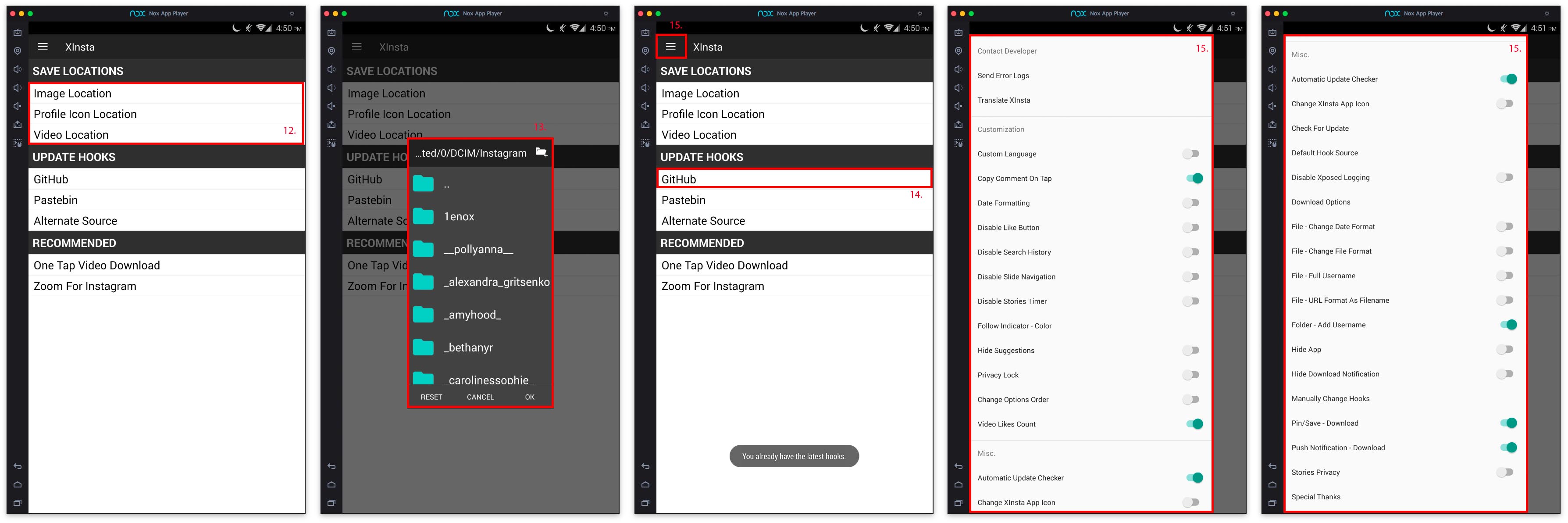
17. chose your preferred saving location
18. update the hooks of XInsta by clicking on Github
19. click on the three bars in the upper left corner
20. set up your preferred settings
21. close XInsta and open Xposed again
Spoiler
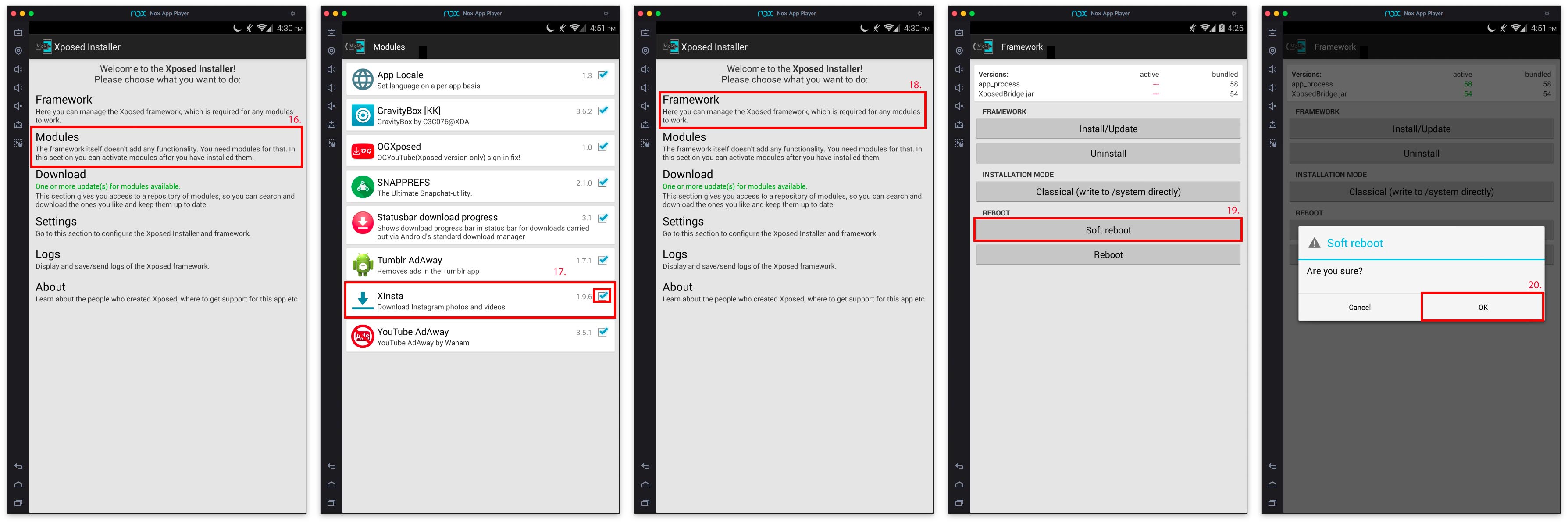
21. click on Module
22. check the box for XInsta
23. go back to main menu
24. click on Framework
25. click on Soft reboot -> OK
Spoiler
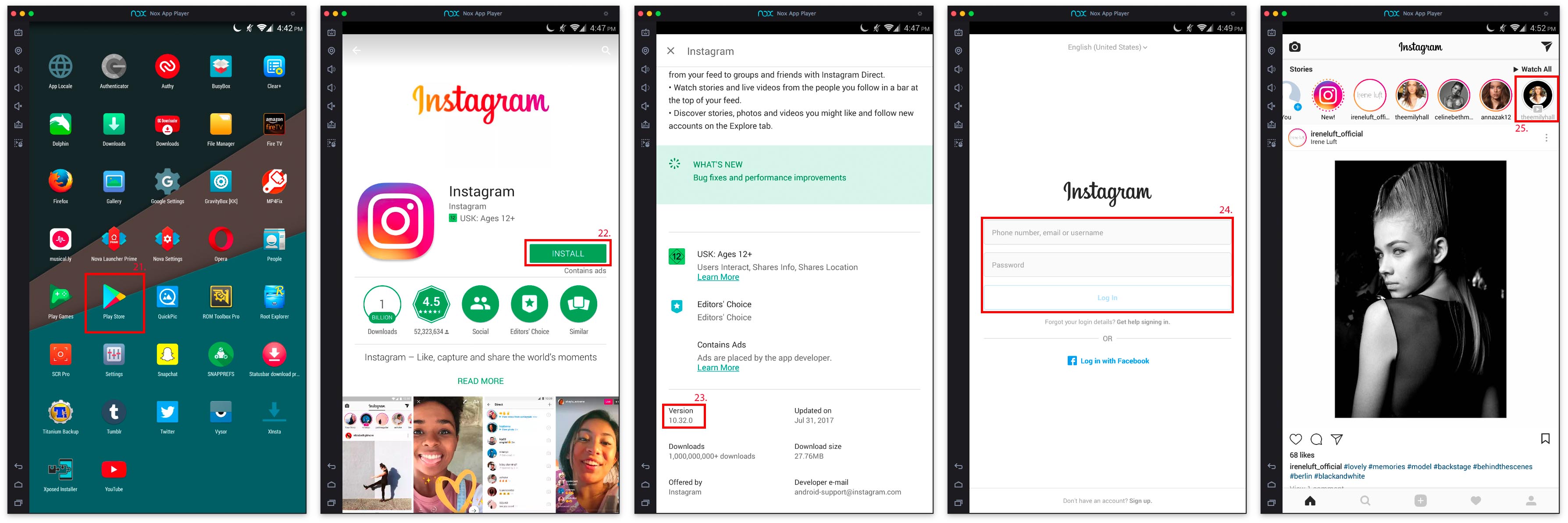
26. after reboot open up Google Play Store
27. install Instagram v10.32 or v10.30 provided in the zip
28. log in with your account informations
29. chose and click on the desired Instagram Live Replay
Spoiler
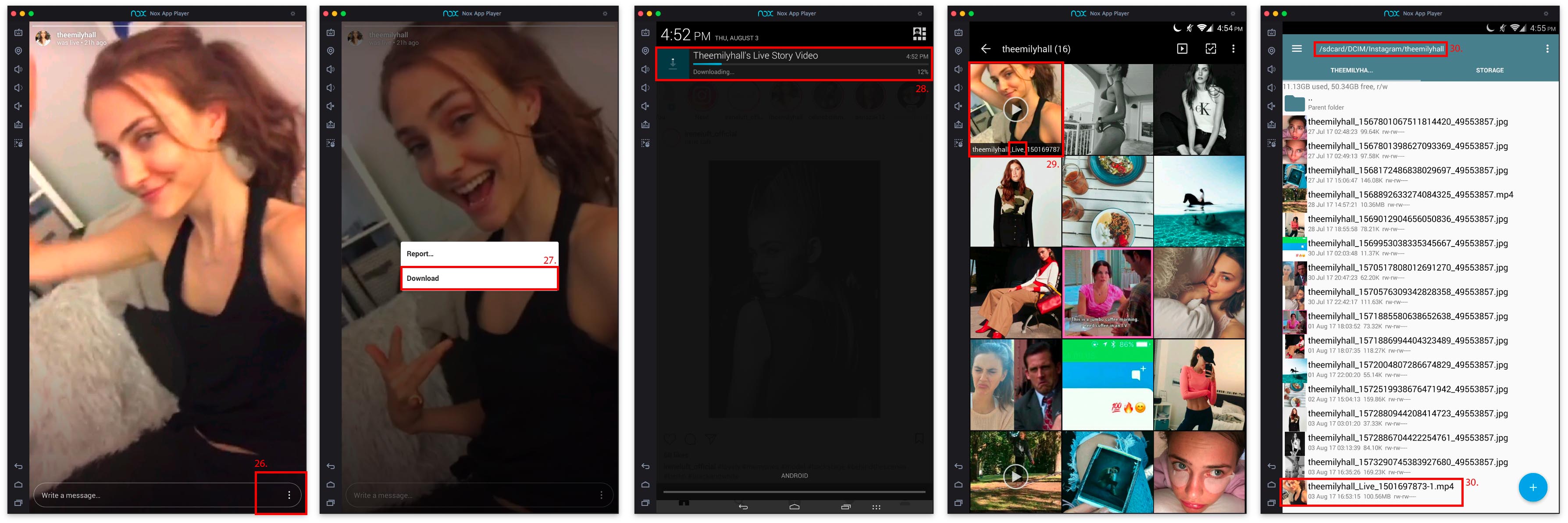
30. with the Live Replay playing click on the three dots in the lower right corner
31. click on download -> wait
32. click on the finished download or browse in your gallery
33. now move the downloaded files from your virtual Android to your Mac/Pc
34a. Android: The file location is: /mnt/shared (you need to grant root access to your file browser)
34b. WIN: The file location is: C:\Users\【Your account name】\Documents\Nox_share
34c. MacOS: The file location is: /Users/【Your account name】/Library/Application\ Support/Nox\ App\ Player/Nox_share
Spoiler
With the provided apks in the zip you can skip step 04/05/06 and 26.
The provided Instagram apk v10.30 is fully compatible with XInsta 1.9.6. The official Instagram version 10.32 from the play store
seems to work too.
Video Tutorial (how to use the provided zip)
*The last mentioned methods (Xposed/Nox) allow you many more things to do with Instagram/Snapchat/Youtube in terms of downloading and posting.
Feel free to PM me if you have further questions or a request for a download. I currently have a ton of (not yet posted) Live Stories.
Wow super detailed, nice job. Hopefully someone can grab some future ones if possible.

On 25/7/2017 at 7:03 PM, eddiwouldgo said:With Christen Harper~


















^Wow^ 


.jpg.2a59d643c4e3eb0f89462555d671ccd3.jpg)
On 7.8.2017 at 7:32 PM, H0mer said:It's Now Cool

For Bishop + Young



15387109_142353259691101_4659550091751718912_n.mp4
20777385_2027828010778390_96174625678950400_n.mp4
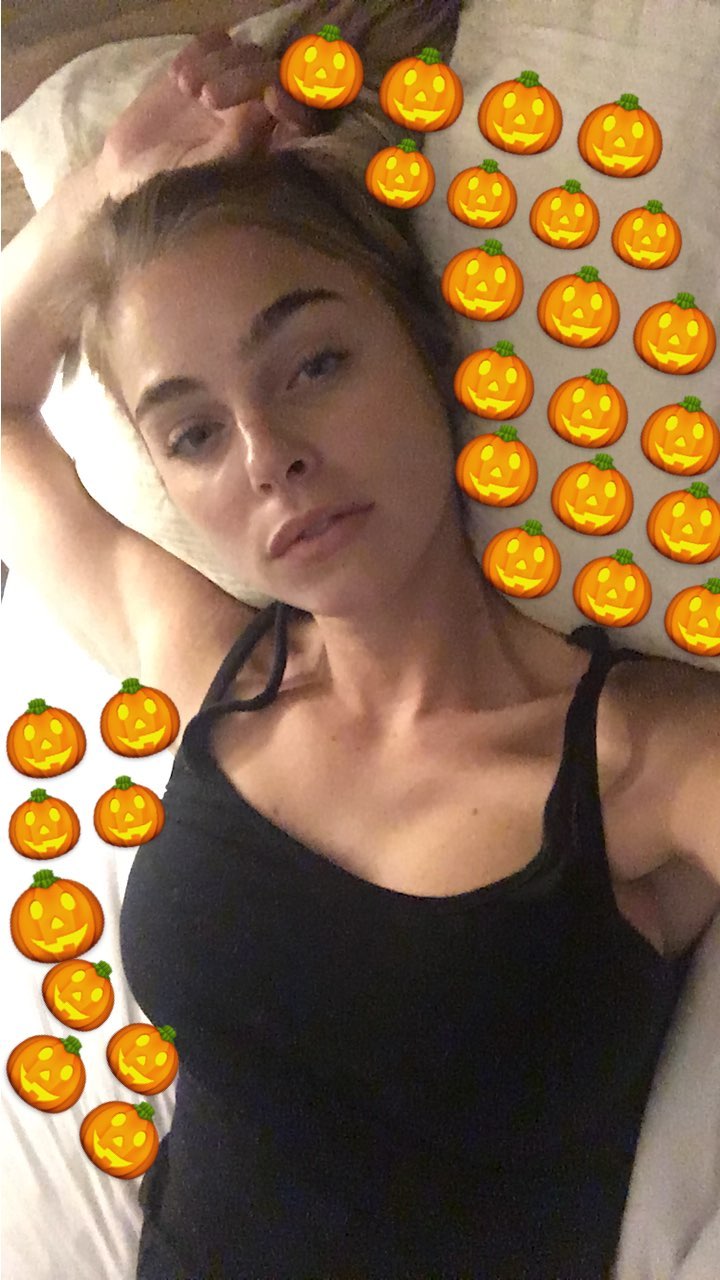
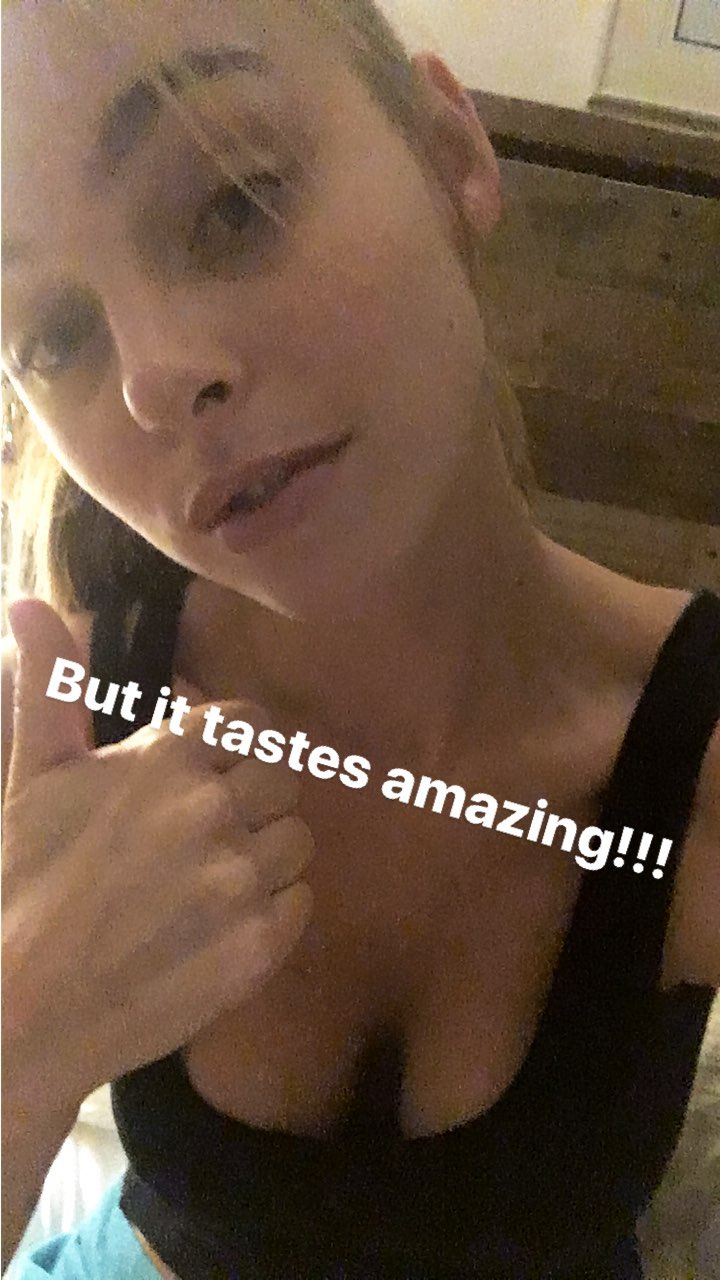
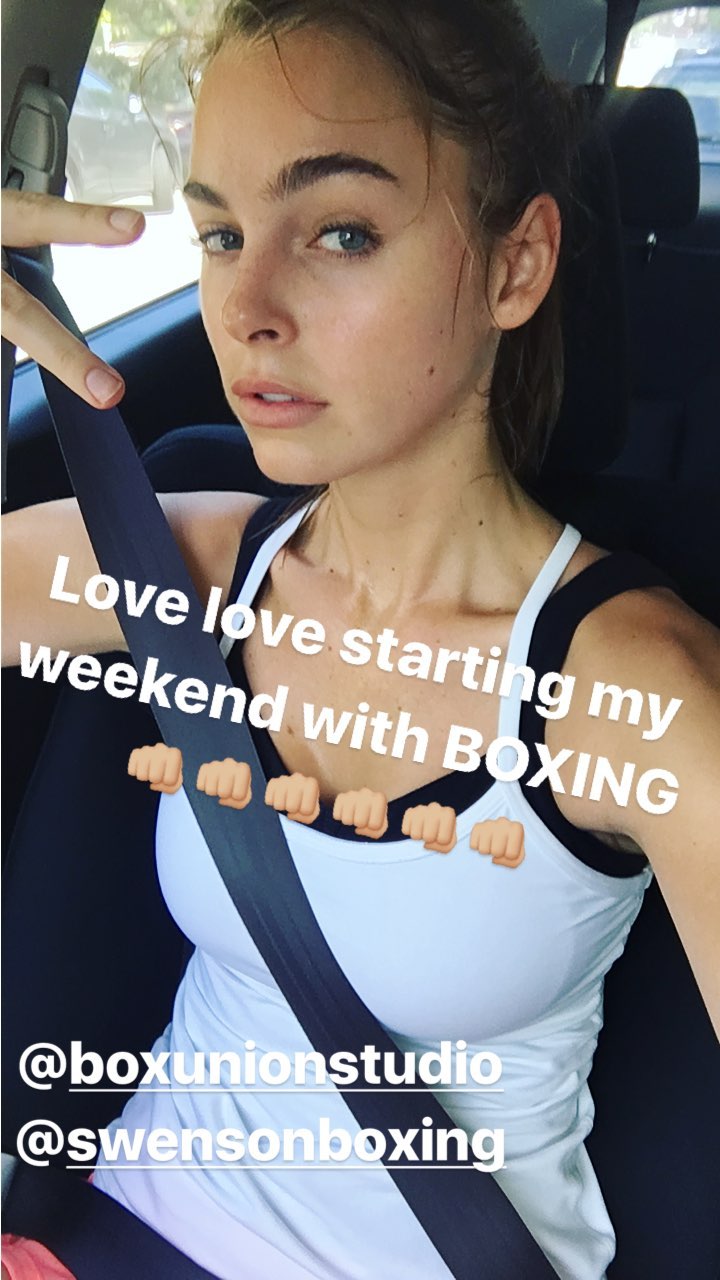
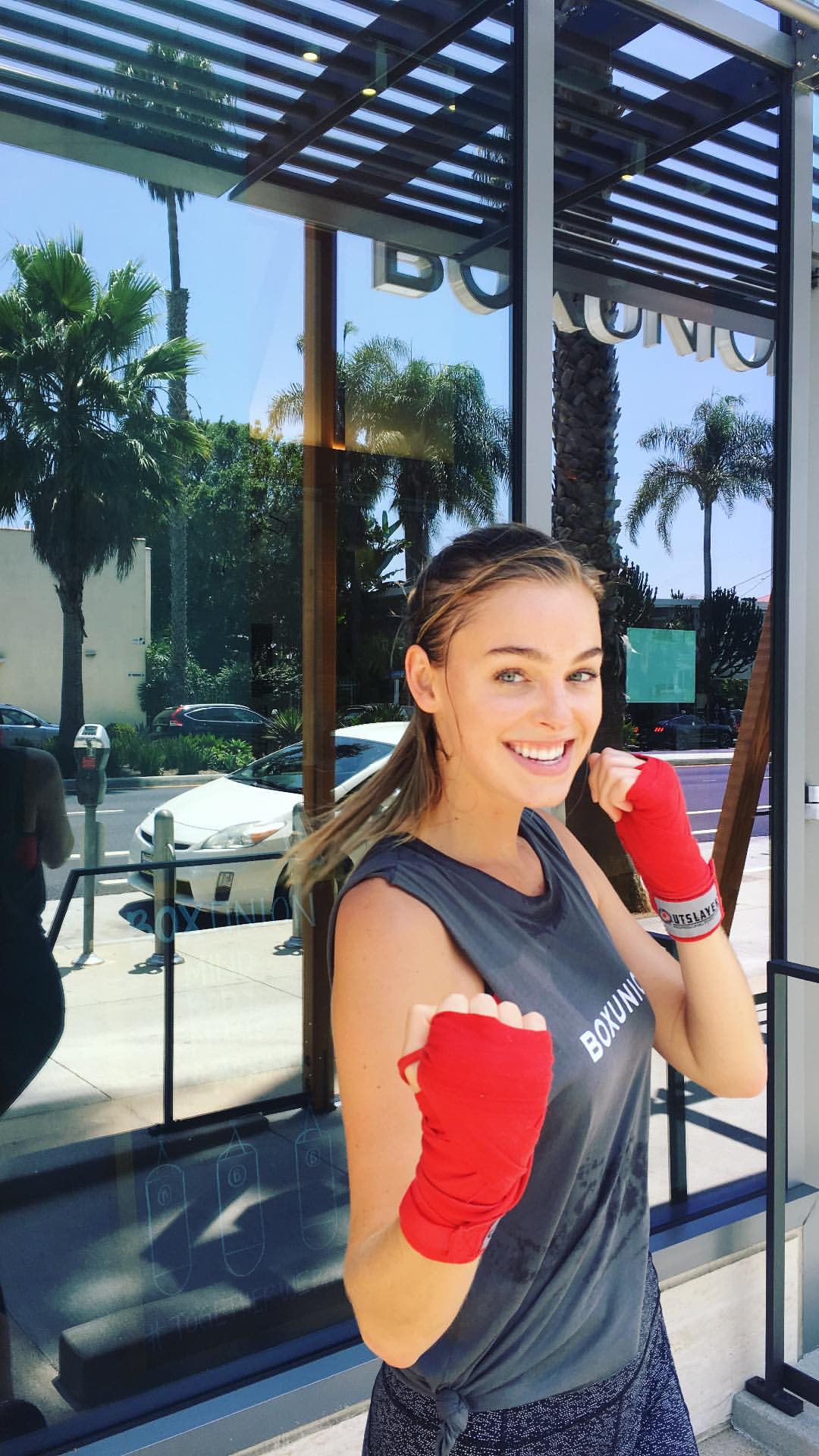
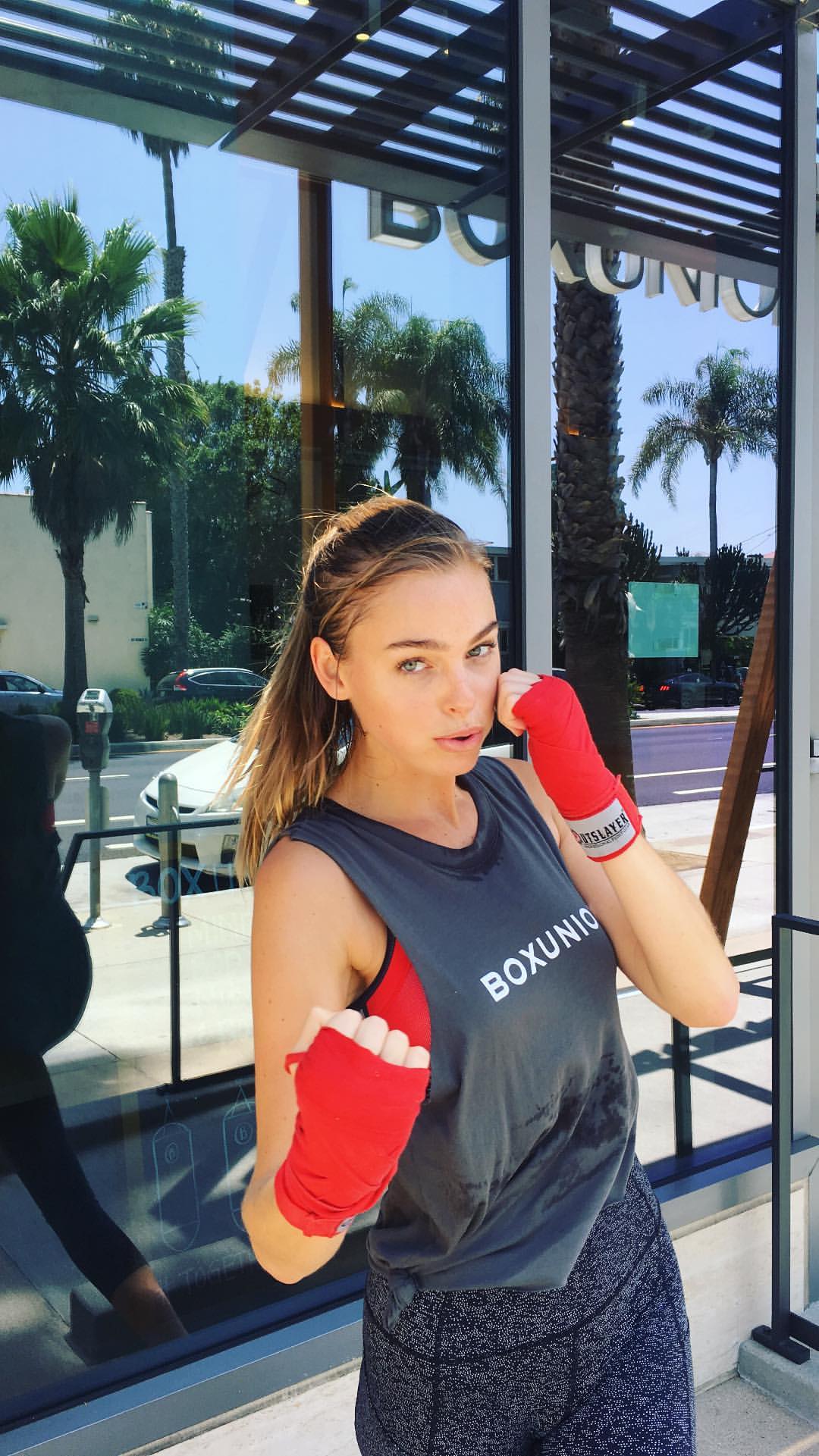
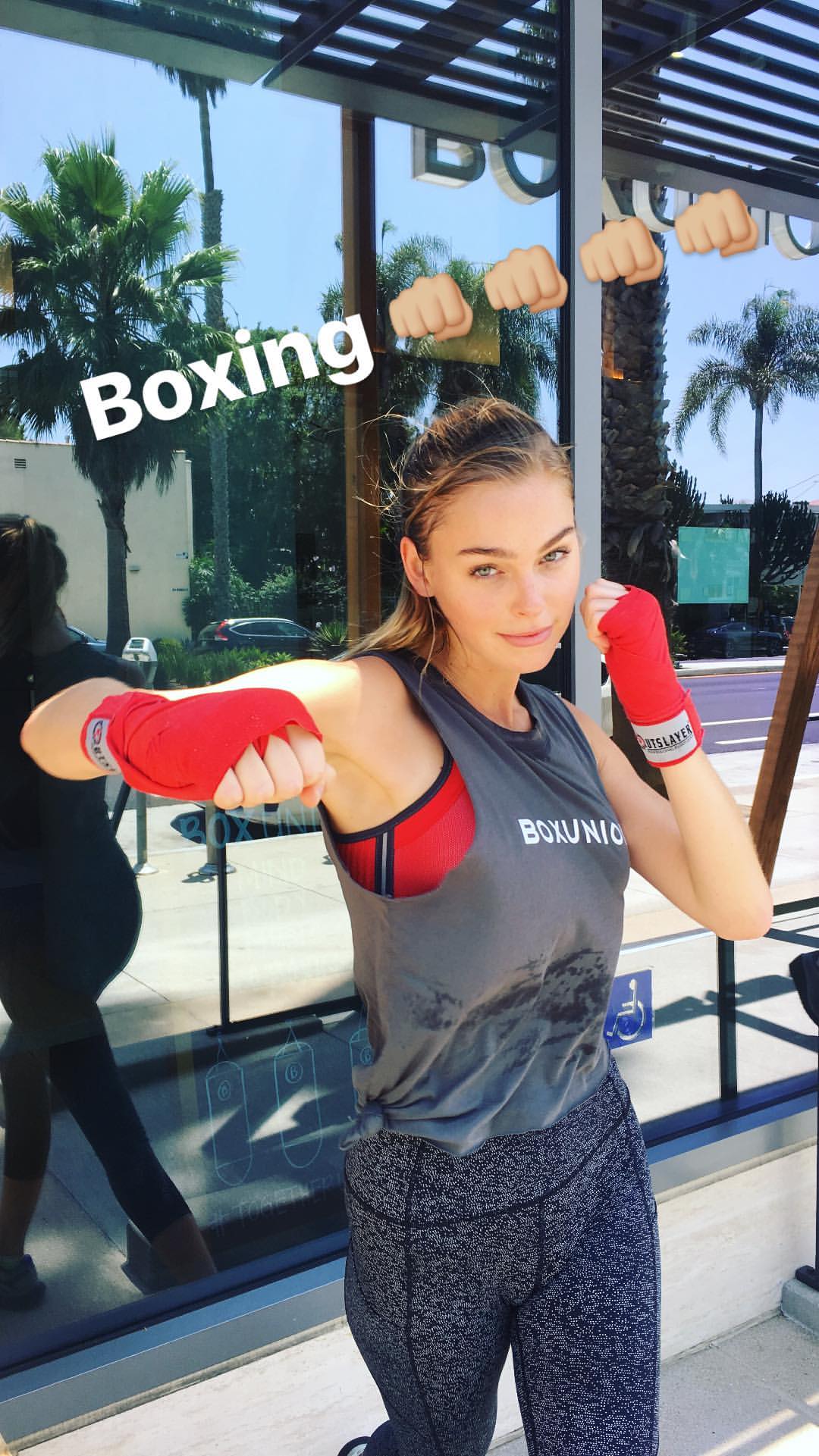
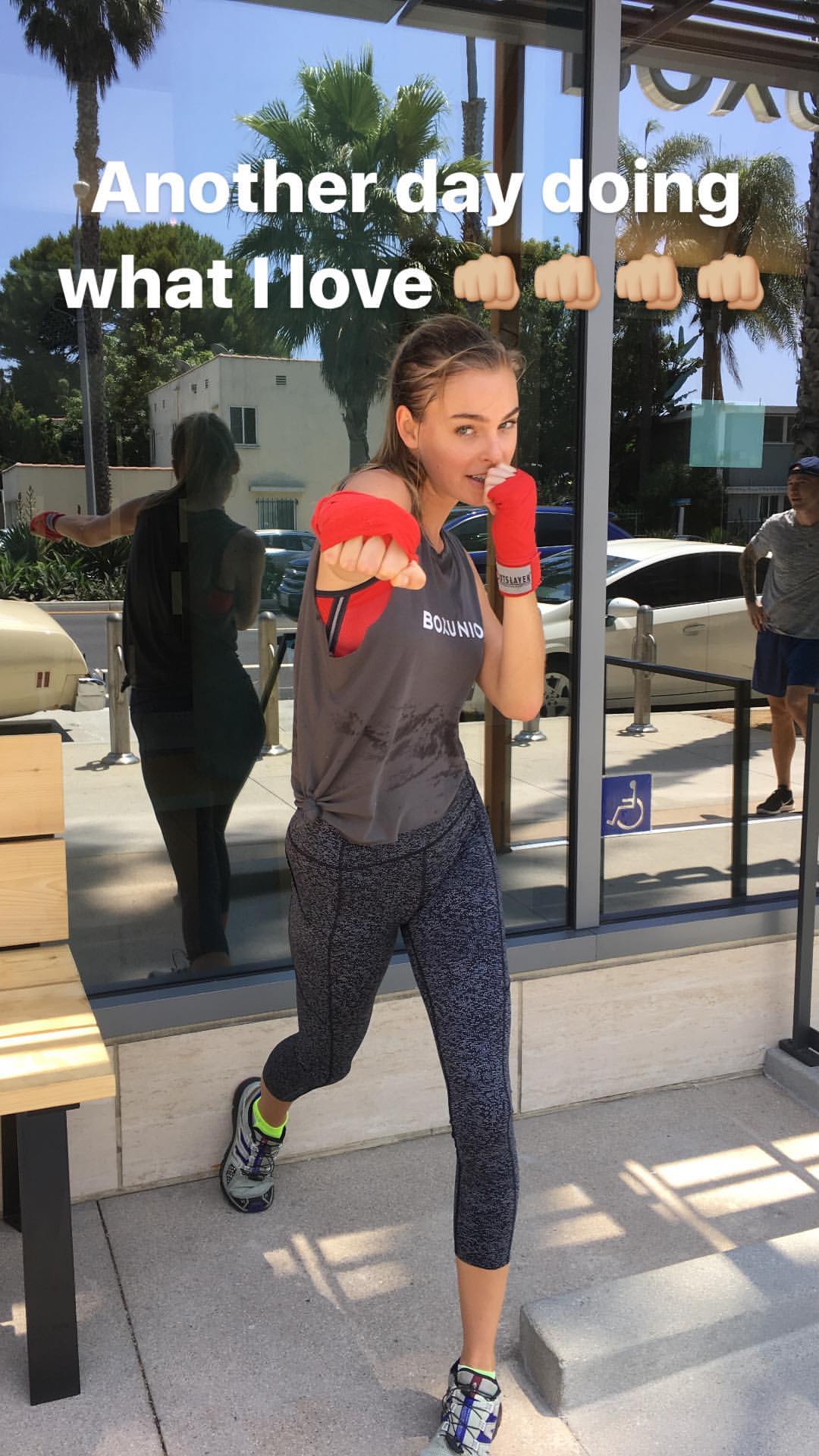
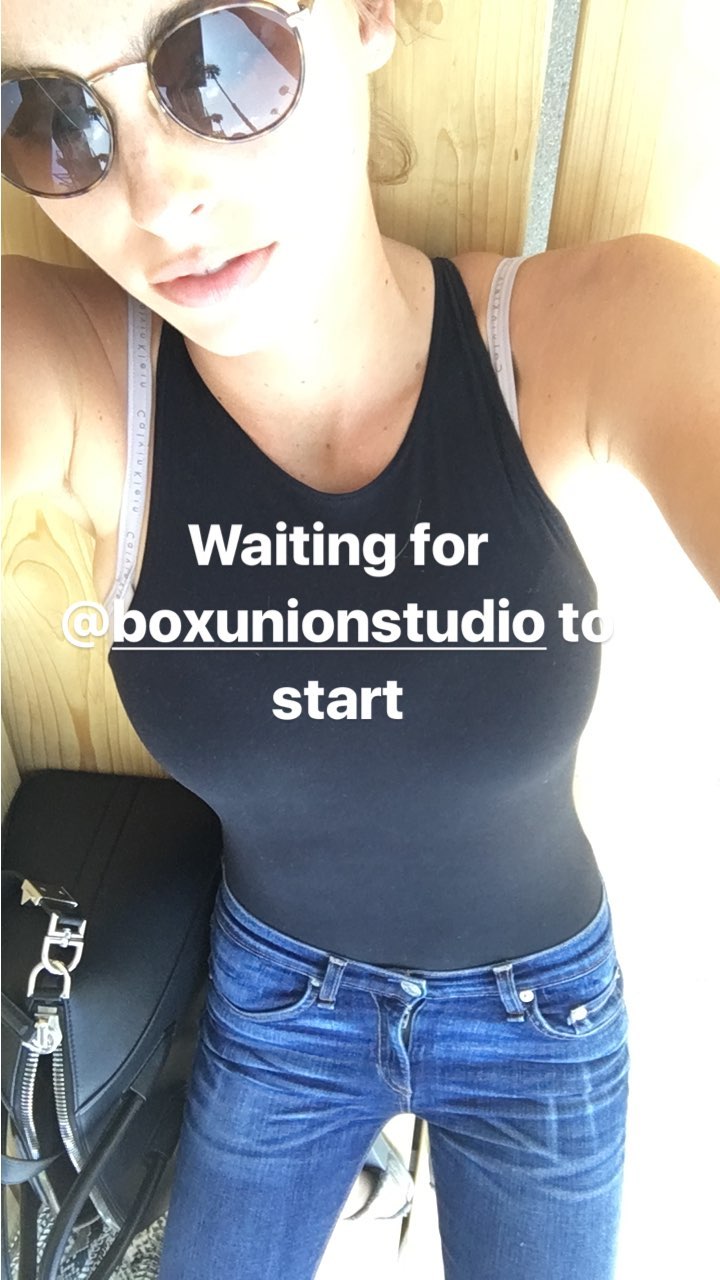
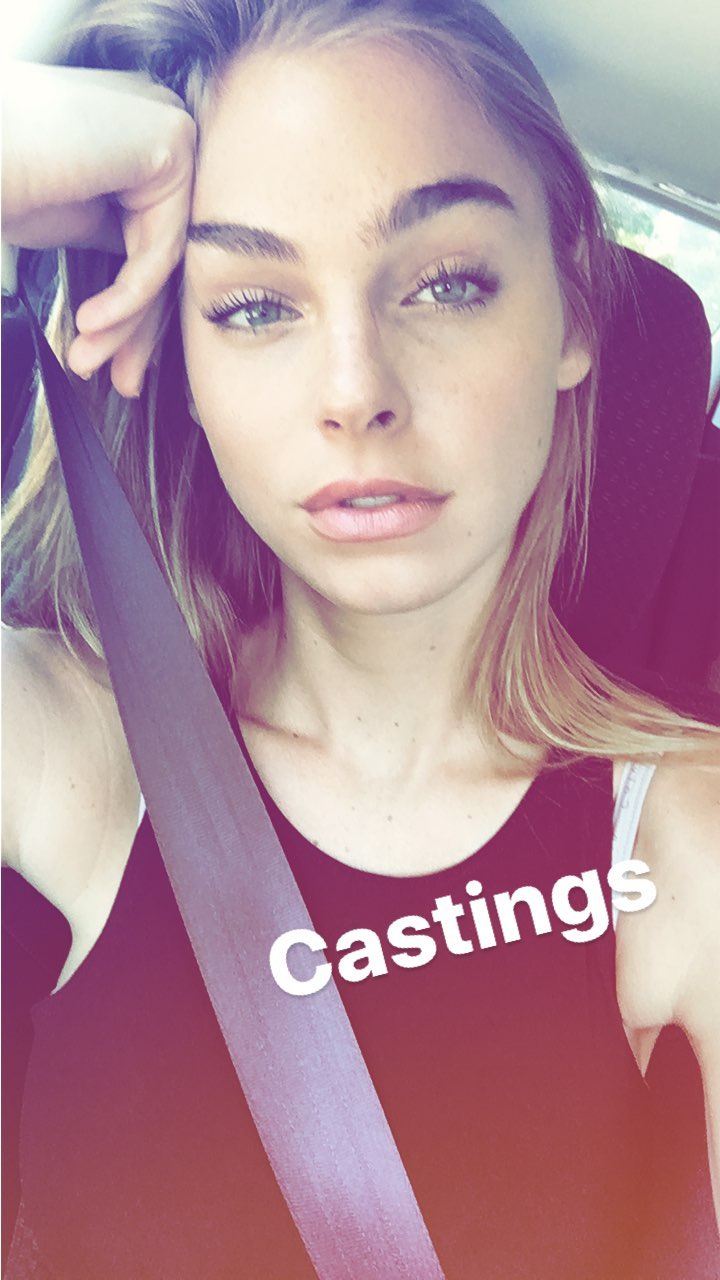
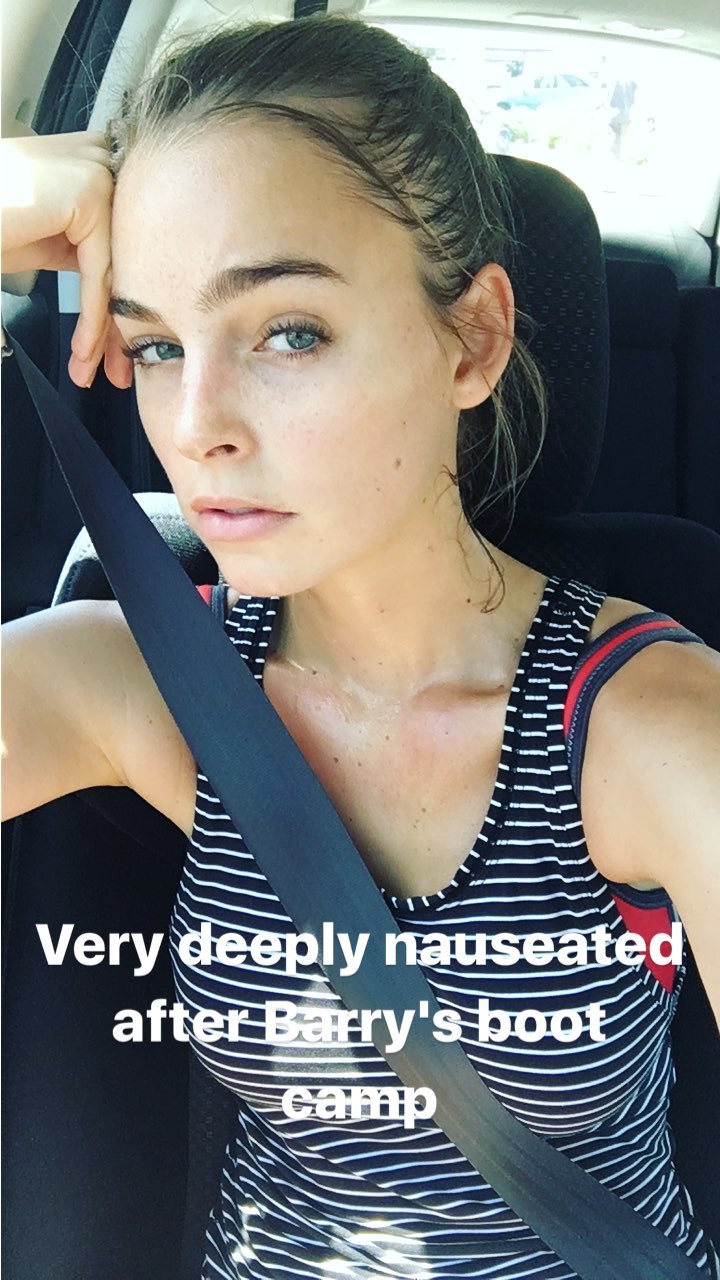
IG Stories

17630980_1557491490992135_1436936172789039104_n.mp4

.
New Lookbook set from campaign "Back To Reality" from Nelly.com