Photoshop Tutorials Pinned
453 replies · 142023 views

so maddog and i use the same method....whoop dee doo basil...hence why i said...what i do is...
omfg....nnnnnoooooooo stopppp it, Elizabeth Claire
I posted a tutorial in a question thread. I'll move it here unless a mod wants to ;p
so maddog and i use the same method....whoop dee doo basil...hence why i said...what i do is...<{POST_SNAPBACK}>
actually you just said that
i clearly didnt understand a word in his post
now based on this excuse that you just stated, you did not say "what i do is..." because the two of you do the same thing.
but ok let's ignore this post for a moment, and just take the new post...well then you just pretty much proved my point. it was a way of injecting yourself into the conversation.
but of course, this is allowed, and i'm not saying it's not. just pointing out what i noticed.
I posted a tutorial in a question thread. I'll move it here unless a mod wants to ;p<{POST_SNAPBACK}>
oh thanks for the heads up, i'll move it 
edit: haha never mind bleh
topics merged
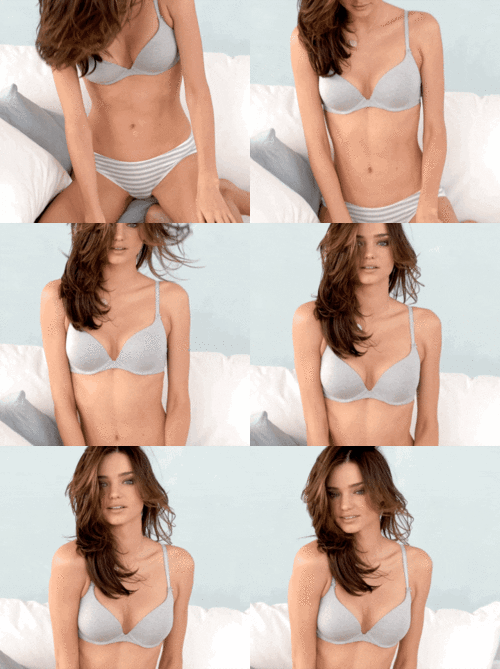
I needa tutorial to do this..
Duplicate the layer, use greyscale on the new layer then change it to soft light in the palette. Blur it, merge the layers and then sharpen it but if it doesn't look good sharp, leave it blurred.
tutorial for that? you just said exactly waht you want to do including the correct commands to do it, why you need a turotial? 
I need caps man!! caps!! my photoshop is in spanish dude!!!! And some word are technical which are hard for my lazy mind to translate.
tutorial for that? you just said exactly waht you want to do including the correct commands to do it, why you need a turotial?<{POST_SNAPBACK}>
 omg i was thinking the same thing...i'm like um i think you just gave ME a tutorial man. GOCHO u got this
I need caps man!! caps!! my photoshop is in spanish dude!!!! And some word are technical which are hard for my lazy mind to translate.<{POST_SNAPBACK}>
damn...photoshop in spanish.... :|
I need caps man!! caps!! my photoshop is in spanish dude!!!! And some word are technical which are hard for my lazy mind to translate.
why do u got a spanish PS nways? im sure any of the admins would happily send it to u in english
not just the admins...almost everyone can provide photoshop
Can anyone hook me up then?
another Q.. how can I make the borders for avatars?
vureh simple! okay im going to assume your using photoshop? and you need caps cause your version is spanish? well let the Llama assist!!
step 1
right click on your layer and select the duplicate layer option:

step 2
right click on the layer copy you created and select blending options:

step 3
you now have a little options panel up! go to the very bottom and select "stroke" here you can set the border colour, pixel size.. etc. note make sure that the stroke position is "inside" or you wont be able to see the border.

if your looking for a double border like in the av you have now, first make a white stroke border 2px in width using above steps. then flatten your image and repeat above steps but this time use a 1px red border!
Llamas truly rule! Thanx 

llama you got a Wacom?
or you can always enlargen the canvas size to whatever color you want
1.go to image-->canvas size and click canvas size and change from inches to pixels
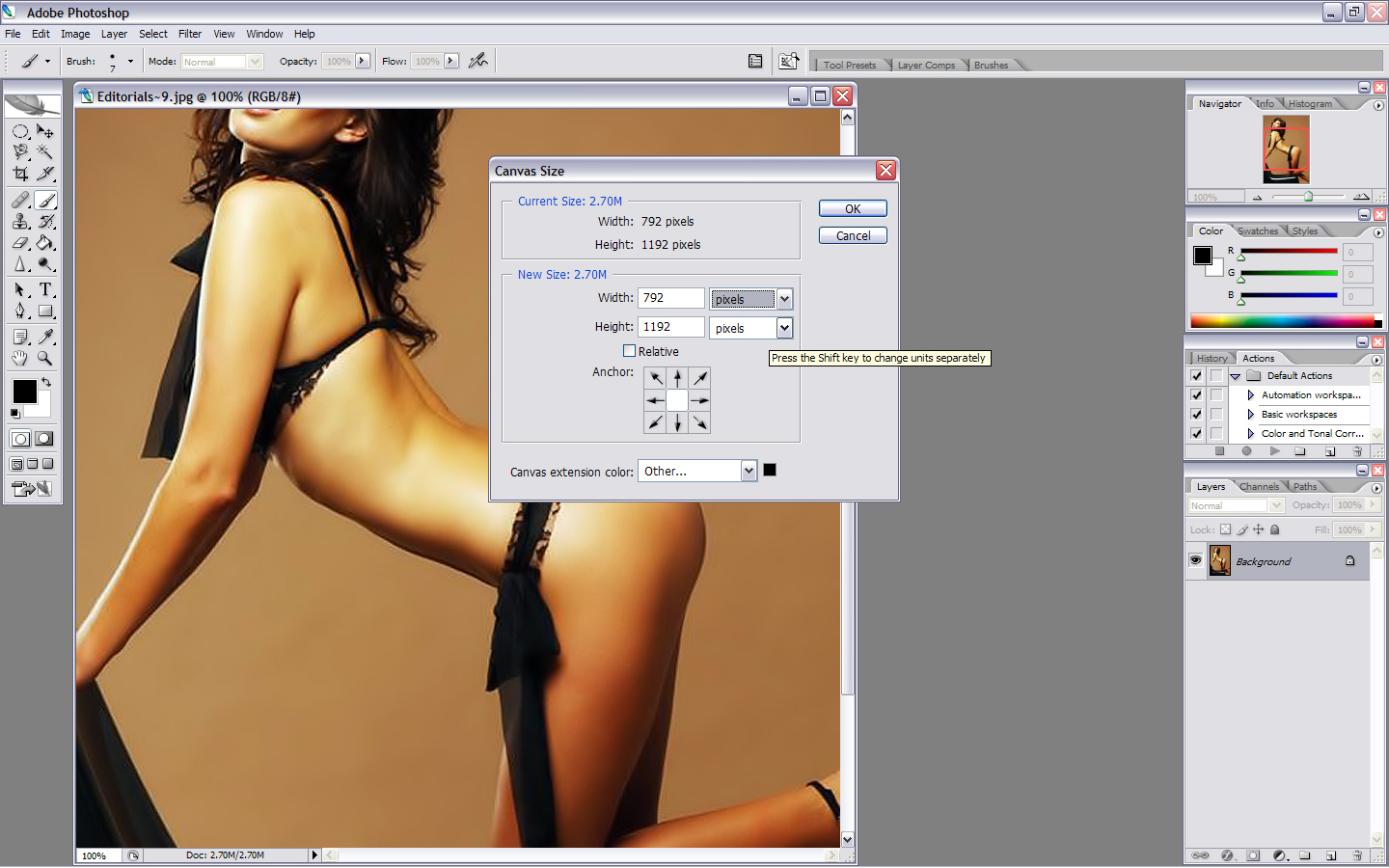
2. to add a 10 pixel border you make the picture 10 pixels bigger in height and width....to change the color click canvas extension color in the bottom and change the color. it normally corresponds with what you have in your foreground and background colors but you can choose other.
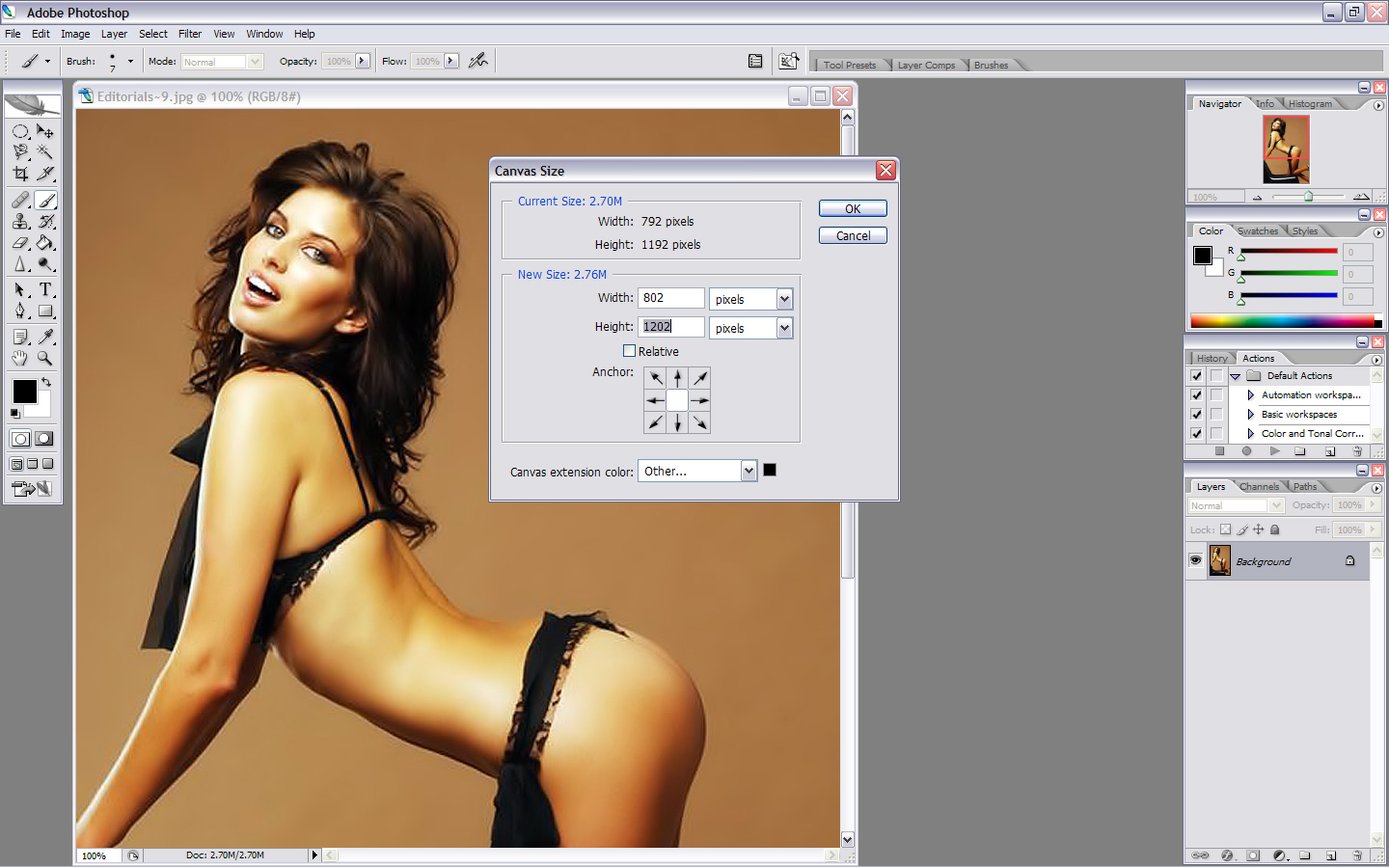
3. final result
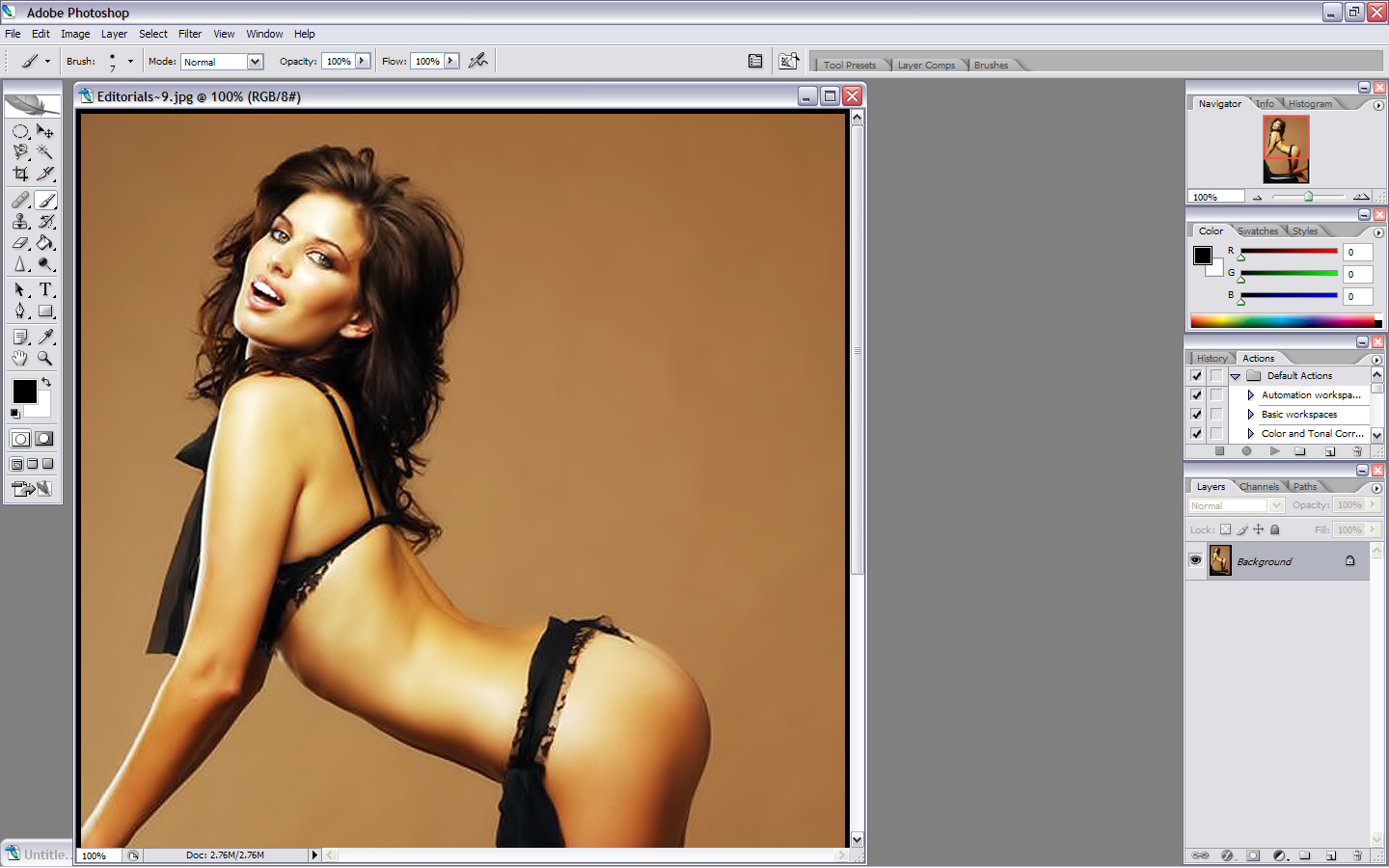
...well thats how rayne taught me how to add a border
thanks Neo
so nobody here can help me get PS in english?
how can i make my scans look good using photo shop