Photoshop Tutorials Pinned
453 replies · 142041 views
YES YES YES
Daaaaang that's hot 

its Ana, course its hot. lol
(sorry.....that was like spam right there xD)
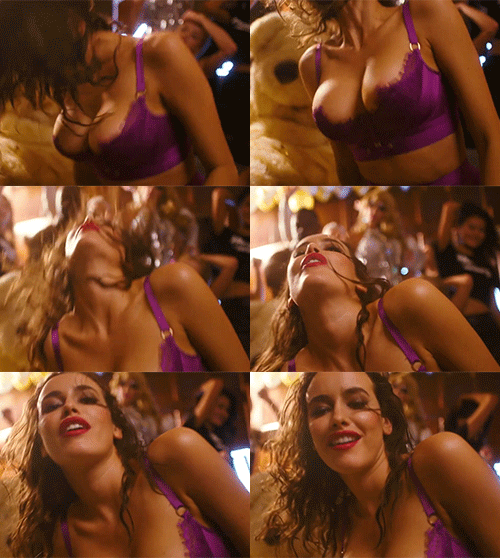
For that, I used Cyberlink's PowerDVD. You can also use something like BSplayer, or if you have the paitence, windows media player. I recommend downloading the trial for Cyberlink. It's easier to figure out
Meghan, who is that in your avi? 
Kemp Muhl. I posted the scans in her thread a couple of days ago
yeah, ok ... I think I should just enroll myself in a photoshop class or something...

or yuo could go here http://good-tutorials.com/ 
Most of what I know I learned from poking at the program for a couple of days 
 some damn fine poking skills
its Ana, course its hot. lol(sorry.....that was like spam right there xD)
I just want to do somethink like AnaBBarrosFan's sig.
Just take each individual picture put a stroke around it, then put them in a line in a blank layer
ok open a new canvas. its just basically going control+n then specify the size of the picture you want (say if its a banner for bz 140 px by 500 px or something) and then press ok and you get a new blank canvas.for the next thing i dont quite get what you mean? like you want to merge 2 pictures of a flag into one?
You didn't quiete answer my Q...
How do I copy an image into the new canvas?
Give me a few minutes and I'll throw something together.
I'm at this phase right now..
but the three images overlap each other when I dragged them into the new canvas..
Hot do I put them next to each other?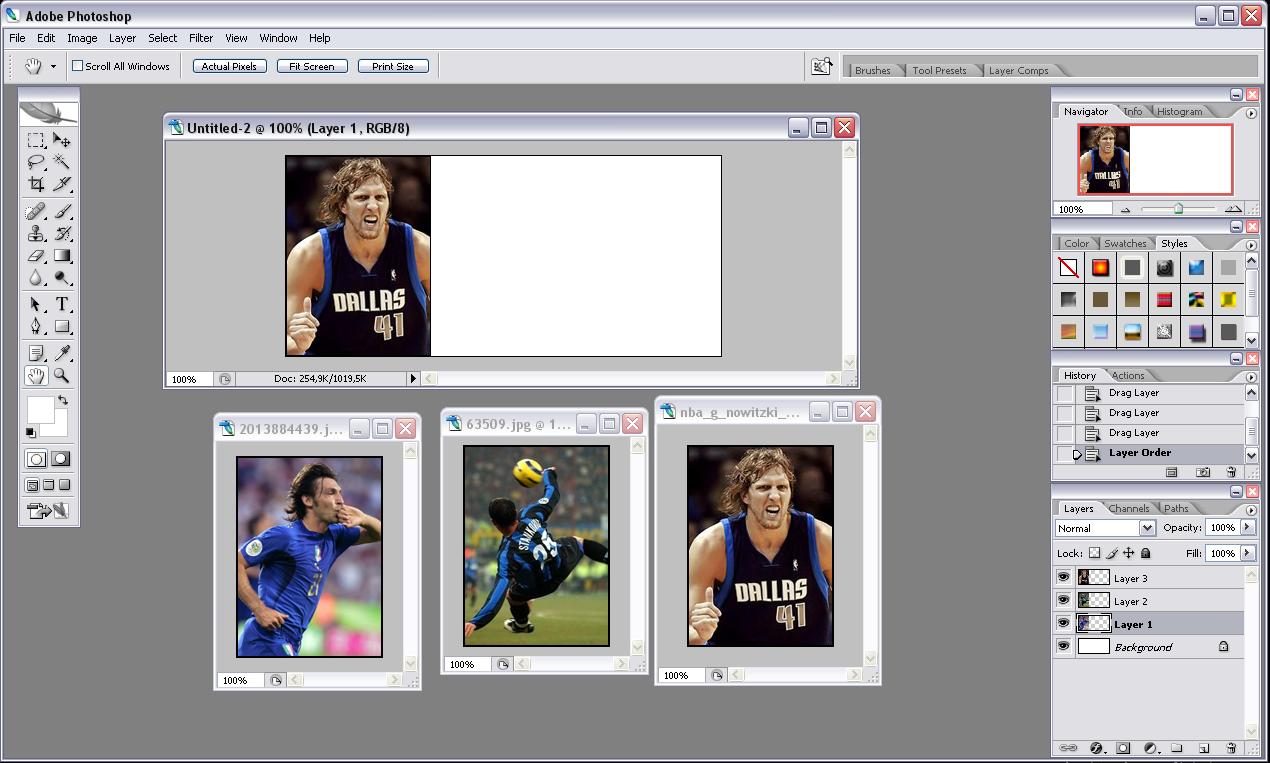
You got to cut them, if the images are actually bigger underneath the size you have there, then you drag the whole image not the one you see. Use the rectangle selection, top left tooll and slect the whole picture, cut it then paste it.
How do I PASTE?
edit menu or do ctrl v
Hope this helps. It was made in about two minutes.
1. Select the images you want to use. I'm using these three images:
http://www.bellazon.com/main/index.php?act...e=post&id=35990
http://www.bellazon.com/main/index.php?act...e=post&id=36001
http://www.bellazon.com/main/index.php?act...e=post&id=35991
Open a new canvas by going to FILE > NEW. Pick whatever size. I did the general signature size for BZ sigs.


Copy your first image (right-click + copy, or if it's an image already in photoshop, go to Select > Select ALL, Edit > Copy) then paste (ctrl+p or EDIT > PASTE) it into the window. Do this twice more so all three images are pasted into your document. There will be three layers, like this:

Next, use your move tool (V on your keyboard, or the little black arrow with the funky + sign next to it) and move your images around until you're happy. To select an image, click on it's layer, then use your move tool to move it around the image. After moving my images, I have this:
 .
.
If you want to move images on top of on another (for example, on this if you wanted the hat picture on the bottom, you would go to your layers pallette and drag that layer to the bottom of the pallette below the others.)
I now want to cut down the middle image, and add borders. There are a couple ways of doing this. Depends on how much paitence you have, really. This is how I generally do it.
Select the marquee too (dotted box) and select the area I want to delete.

Go to the layers pallette and right click the layer I want lines on, selecting Blending Options from the menu.

On that menu, click on stroke, then change the dropdown that says "outside" to "inside". Select how thick you want the border, and how wide. Hit okay when you're happy.

Since there's only three images here, I don't have to do any more lines, unless I want to put a border around the whole thing. Since I do, I flatten the image (Layer > Flatten Layers), then select everything by hitting ctrl+A (you can also go to SELECT > ALL) and duplicate the layer (ctrl+j or layer > duplicate layer).
Right click, select Blending Options, and stroke it again.
End result:

I did it!!!!!! 
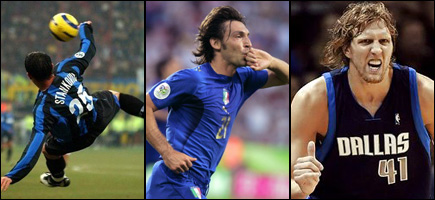
EDIT:
Avada I did it slightly differently, next time I'll use your method. 
Thanks so much everyone.. I know it took patience to make me understand

whoo another Ana example i hereby dub her the official photoshop tutorials mascot