Photoshop Tutorials Pinned
453 replies · 142038 views

*cleaned up the background



How the flipping hell do you guys do that? 
That's aweeeesome.
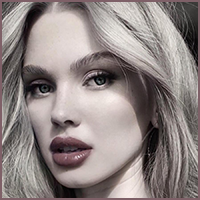
Well I made seperate layers for each color I used. Switched all the color layers mode to color, then colored the image in the color close to what I wanted. Erased the glowing edges of my mistakes. Then went into hue/sat and tweaked the sliders till I got the color I thought was the closest to reality  quick and fast way.
You've lost me. 
How do you make a seperate layer for every color you use?
hit the new layer button under the layer area, you know where your picture is.
Yeah, I know that. I meant how do you decide how many colors you will need?
Maybe this is a silly question... 
It depends on how many things you want to be different colors, skin, clothes, eyes, background.
So to give me a general idea, how many layers did this picture take you?
4: background, skin, lips, and hair
Do you mind if I mess around with that b&w picture myself, to see if I can come to a similar result?
knock yourself out mate, its not like its my picture  good luck
  I must be off to school, ttyl
So after you've created layers for the different colors you want to use, how do you color the different parts of the picture?
just use the brush tool and color over the picture
Thanks for the help, but I'm probably still doing some stuff wrong. It just never turns out the way I would like.
Could you help me with something else? Do you know a good way of turning a picture into something that looks more like a drawing? I mean like an easy way of doing this?
hmm maybe go to filter then one of the artristic filters, if you give me screen shots, maybe i can help better
I've tried some of the artistic filters, and messed around with it untill I had something that was semi-satisfactory. Thanks. 
k
Hi, i have Adobe Photoshop Pro 8 and i have a few pictures with writing across them and i was wondering if anyone knew how to remove the writing.
Thankz.
Monica.
Like a watermark? Use the "clone stamp" tool.