Photoshop Tutorials Pinned
453 replies · 142039 views
Threads Merged

sweetcheekzz... how many ppl did you send a PM to asking the same question? other than to me?



I am sorry for the lack of knowlege that i have of PS7, Got it a couple of days ago and i am still getting use to it all 
Anyway i had one question i was hoping you guys could help me with...
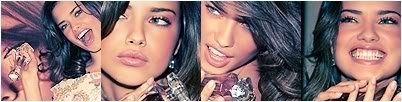
i have done(or trying  ) a similar wp to the one on the on the bottom however the person who made the wallpaper on the bottom has managed to make it looks as though it is one whole picture right however mine just looks like three pics stuck together..How do you merge the pictures together to make it looks as though it is one picture? Do i do it in the same way as Adrianas Llama has for blending or is it done totally different way..? and if you could tell me how you do borders to that would be hot too!
thanks!! 
Blending: A Llama Tute
Tools Required:
- Photoshop
- Some patience
Tips:
Blending well can be quite difficult. So here are some tips to make the job easier
- Pick pictures from similar settings (eg both at the beach) it'll make background blending a lot easier. Even better select a set of photos from the same set
- pick pictures with similar lighting. you can have 2 pictures from the same photoshoot but if ones got bright lighting on it and the others shadowed it ends up looking odd and it takes a lot of tweaking to even get them looking similar.
Kay onto the tute
Step 1:
Pick your pictures. Note the similar setting and lighting
Step 2:
Open your new canvas and paste your pictures onto it, and position them where youd like them to be. Now go to your brush tool, pick a soft circular brush (not the hard circles the fuzzy circles) and start erasing parts of one of the layers so your work begins to look like this:
(i am erasing parts of layer 3 in this example)
Step 3:
Step 2 gives you a basic idea of blending. now you have to tidy things up. this may involve a lot of zooming in, switching from soft brushes to more closely defined ones or using the selection tool to select and delete parts you want to erase. Just be patient, do tweaking. if you want to try something but are scared it might make a mess, just duplicate your image and then if it doesnt turn out to your liking go back to the old one. after some tweakign this is what i ended up with:
Extra tips
- got problems with blending say.. white and off white? layer modes such as overlay or brightening highlights just magics flaws away.
- if you have an edge or something that wont blend and no size specifics just crop it straight out of the shot.
- Background run out? use the cllone brush to continue it or repaste the photo if its a repeating background (like the sea in thie shot) to give you extra distance
anyway that was just a quickie. ihope that helped. its my blending method anyway.


hey i was wondering if someone can teach me how to use this effect in photoshop
btw i have adobe photoshop 7
How do you paste images on new layers?
^ Either copy & paste, or drag it onto the new layer (make sure the image is unlocked before you drag it )
Okay and once you've done that how do you open the animation box?
By the way it won't let me paste images once I drag them, I tried copying and pasting them!
Give me a screenshot
Ahh never mind I got it! I just have to resize!!! Ahy, that will take forever is thier a quick way to resiza all of them???????
Edit* never mind it was my slow computer.
You are trying to make a .gif , right???
Then go to "Edit in ImageReady" and resize them all there .
I made it!!! My first gif...its sloppy but it will work! I'm proud of my sloppy gif! Thanks for the help!
Pretty good---nice job!!! 
I need help yet again!
I need help yet again. I read the previous tutorials, but have trouble understanding it.
how do i get this GIF:
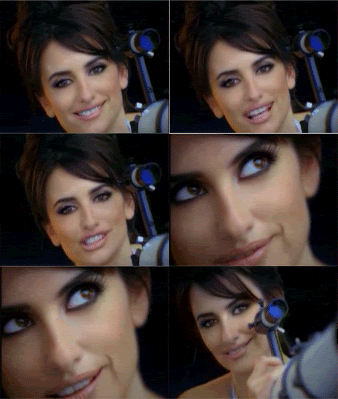
into my signature?
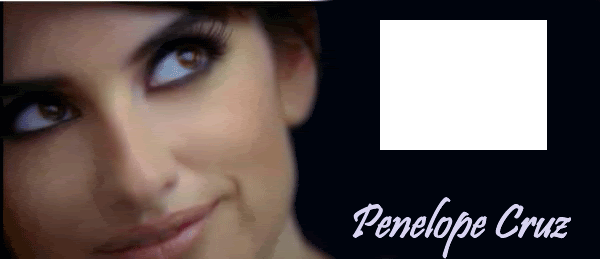
Its my first ever try at making my own signature!
Better yet, can someone do it for me? Please...! I realize I have to resize it and it might be a hassle, but it will be greatly appreciated!
Never mind! Sorry hehe thanks PC!!!
I know this is probably some where on this topic but I figured it would be easier to ask. Does anyone know what I need to make avatars and sigs? Also steps would be awsome.
http://www.bellazon.com/main/index.php?sho...2024&st=100
how to make avatars ^^^^
and most use Adobe photoshop and imageready CS2